
How to update iCUE firmware: choose the right path
Device firmware is code stored on the Corsair product or controller. It is different from updating the iCUE desktop application. Update the app first when required, then update only the device that reports an available official package.
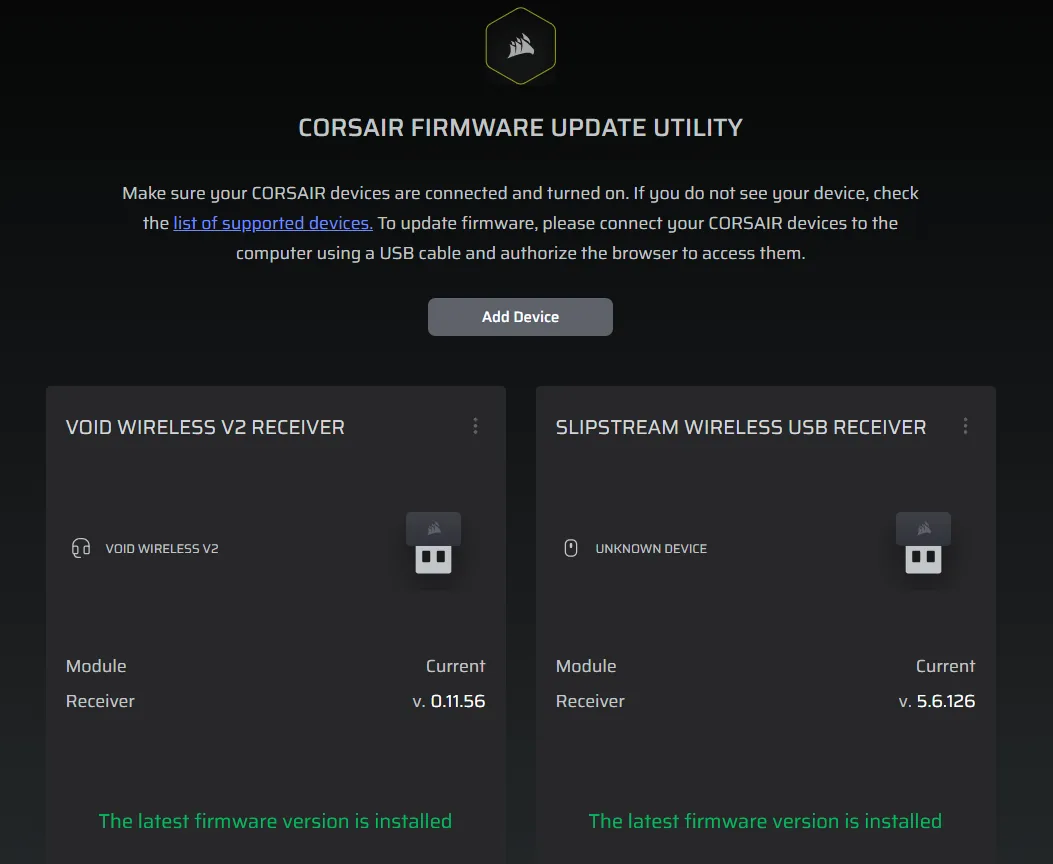
Use Device Settings when the device appears normally. Use Force Update for a detected device with corrupted behavior or a failed earlier write. The Corsair web tool is a separate recovery path for selected devices missing from iCUE.
Before updating, decide whether firmware is actually the likely cause. Missing lighting after a profile change, a disabled Windows service, a loose internal cable, or an unsupported USB path can imitate firmware trouble. Record the current device version and the exact symptom so the result can be compared after the update.
| Situation | Best route | Avoid |
|---|---|---|
| Device appears normally | Check for Updates | Repeated force updates |
| Detected but faulty | Force Update | Disconnecting during write |
| Missing from iCUE | Corsair web tool | Random firmware files |
| USB or power unstable | Fix stability first | Starting an update |
Prepare Windows, USB, and power first
Connect the device directly when practical, close other RGB or hardware-control utilities, and pause sleep or automatic restart. For an internal controller, verify SATA power and the internal USB header.
Save important profiles before deeper troubleshooting. A routine update should not remove them, but a clean reinstall, reset, or recovery procedure can change local settings.
Wireless devices may require both the receiver and the product to be connected in a specific order. Laptops and desktops should remain on reliable external power. Avoid a front-panel port that disconnects under load, and do not begin immediately before travel, shutdown, or a scheduled restart.
- Use the current signed iCUE release from Corsair.
- Prefer a stable direct USB connection.
- Close competing RGB and monitoring utilities.
- Finish Windows Update and planned restarts first.
How to update firmware in iCUE
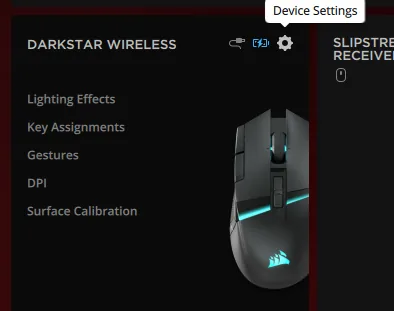
Open iCUE, select the exact device tile, choose Device Settings, review the current firmware version, and select Check for Updates. Begin only when the connection and power are stable.
Leave the device connected while iCUE downloads, transfers, verifies, and restarts it. The tile may briefly disappear while Windows detects it again.
After completion, give Windows time to rebuild the device connection. Check that the product tile returns, then verify assignments, lighting, sensors, cooling channels, audio endpoints, battery status, or wireless pairing as appropriate. A successful message is not enough if the original function still fails.
- 1
Select the exact device
Open the tile for the keyboard, mouse, headset, cooler, controller, hub, or receiver.
- 2
Open Device Settings
Confirm the shown product and current firmware version.
- 3
Check for Updates
Accept only the package delivered by iCUE.
- 4
Keep the connection stable
Do not disconnect, reboot, sleep, or power off.
- 5
Retest the device
Confirm detection and the feature that motivated the update.
When and how to use Force Update
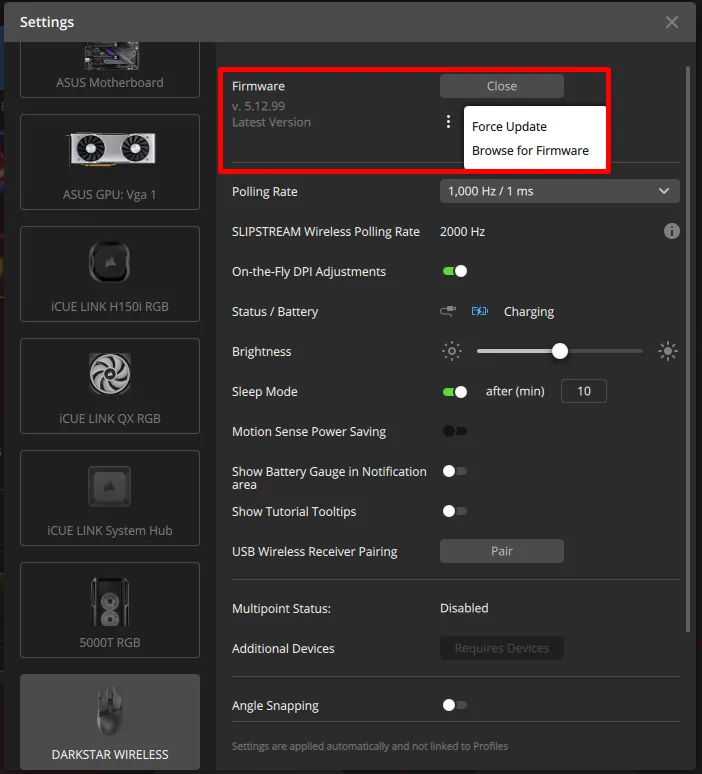
Force Update reinstalls firmware even when iCUE does not show a newer version. It can help after corrupted behavior, a failed previous update, or a specific Corsair support instruction.
Open the three-dot menu beside firmware status and choose Force Update. If it repeatedly fails, stop retrying and investigate USB, power, service, or installation problems.
Do not use Force Update as a general performance tweak. It does not increase polling rate, improve cooling, or unlock unsupported features by itself. If the same firmware reinstall succeeds but the symptom remains, investigate configuration, compatibility, cables, services, drivers, or hardware instead.
A forced reinstall cannot repair a loose cable, failing USB controller, unstable power supply, or unsupported device.
Fix a failed or stuck firmware update
First wait for the device to reconnect. If iCUE clearly reports failure, use a stable direct port, restart Corsair Device Control Service, reopen iCUE, and retry once.
If the device remains missing, check Device Manager, internal cables, and web-tool eligibility. A device absent on another known-good PC may need Corsair support.
Stop recovery attempts when the device disconnects repeatedly, Windows reports an unknown USB device, internal power is intermittent, or the same error returns on another port. Repeated writes add risk without fixing the underlying condition. Save logs or screenshots and provide the device model, serial number, iCUE version, firmware version, and steps already tried to Corsair support.
| Symptom | Next check | Escalate when |
|---|---|---|
| Update appears paused | Wait for device reconnect | iCUE reports failure |
| Device disappears | Direct USB, Device Manager, web tool | No detection on another PC |
| Force Update loops | Service, USB, power, iCUE repair | The same error repeats |
Version freshness, limits, and official sources
This download site checked software freshness before publishing. The current verified Windows installer remains iCUE 5.69.97, released July 13, 2026; no newer verified installer was found on July 20, so version, file-size, checksum, and download fields did not need another change.
Firmware versions differ by product and change independently from the app version. This guide does not claim one universal latest device-firmware number; use the value shown for the exact product.
iCUE firmware update FAQ
Should I force update iCUE firmware?
Only when a normal update fails, the device behaves incorrectly, or Corsair support recommends it.
Why is the firmware update stuck?
USB instability, sleep, competing utilities, service problems, or a device restart can make the process appear stuck.
Can I unplug the device during an update?
No. Keep USB and power connected until iCUE confirms completion.
What if iCUE does not detect the device?
Check power, USB, Device Manager, and Corsair Device Control Service; supported products may use Corsair’s web tool.
Is iCUE 5.69.97 the firmware version?
No. It is the iCUE application version checked for this guide; each device has its own firmware version.