
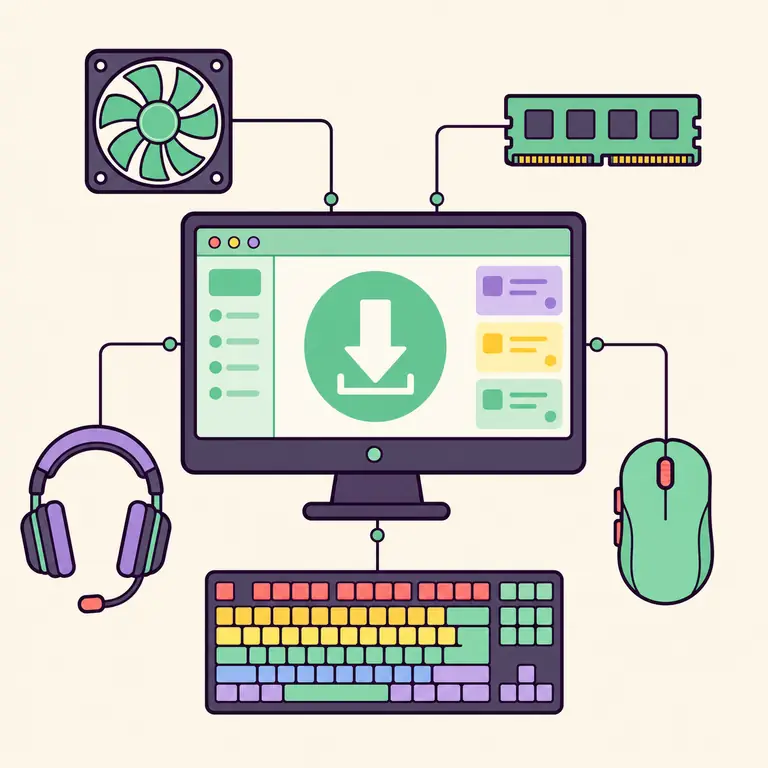
How iCUE compatibility works
iCUE detects supported Corsair hardware and loads the controls available for that product. Two keyboards in the same family can have different onboard memory, lighting zones, polling options, or firmware support. Check the full model or part number rather than relying on a broad name such as K70, Vengeance, or H100i.
The connection also matters. A headset connected through its supported USB receiver may expose controls that are unavailable through a basic analog connection. A cooling device can depend on a USB controller or iCUE LINK hub. When a product is missing, verify the intended connection before changing software versions.
| Category | Typical iCUE controls | Compatibility detail |
|---|---|---|
| Keyboards | Lighting, assignments, macros, onboard profiles | Layout and model-specific zones |
| Mice | DPI, remaps, lighting, calibration | Wired, wireless, receiver, and onboard support |
| Headsets | EQ, microphone, sidetone, lighting | USB or receiver mode can matter |
| Cooling | Fans, pumps, sensors, LCD, lighting | Controller and USB connection required |
| Memory | RGB lighting and device effects | Exact Vengeance generation matters |
| iCUE LINK | Fans, pumps, sensors, LCD modules | Hub, port, cable, and firmware topology |
Windows, macOS, and Linux support
The verified current installer on this site is a Windows x64 EXE. Windows 11 and supported 64-bit Windows 10 systems are the primary routes covered here. Platform support does not guarantee that every historical device appears in iCUE 5, so combine the operating system check with an exact device check.
Corsair has offered macOS software for selected devices, but macOS feature coverage differs and the Windows EXE cannot be used on a Mac. This site does not provide a native Linux iCUE download. Community control projects are different software and should not be presented as official Corsair iCUE.
- Windows: use the x64 installer for a supported Windows 11 or 10 system.
- macOS: use Corsair's current Mac-specific page and check device coverage.
- Linux: no native official iCUE package is offered by this site.
- Virtual machines: hardware passthrough and driver behavior may prevent useful control.
Check a device before installing iCUE
A five-minute hardware check prevents unnecessary downgrades. Locate the full model and part number, note the connection method, identify the installed iCUE branch, and compare the device with Corsair's current documentation.
- 1
Identify the exact model
Use the label, product page, or Device Manager information rather than a family nickname.
- 2
Check the connection
Confirm the required USB cable, receiver, controller, or iCUE LINK hub is present.
- 3
Update Windows first
Complete pending updates and restart so drivers and services begin from a stable state.
- 4
Install the current branch
Use iCUE 5 first when current documentation supports the device.
- 5
Investigate legacy only with evidence
Use the Versions guide when the exact device has a documented older-branch requirement.
Why a compatible device may not appear
A supported model can remain missing because of a charge-only USB cable, unstable hub, receiver pairing issue, outdated firmware, suspended USB controller, damaged iCUE service, or another hardware utility holding the device. Test a direct USB connection and restart before reinstalling software.
If other Corsair devices appear but one does not, focus on that device and connection. If no devices appear, focus on the iCUE service, installation, and system state. Changing to an old version without this distinction can create a second problem.
Build an iCUE compatible devices checklist
Create an inventory before installing or changing branches. For each Corsair product, record the exact marketing name, part number when available, connection type, receiver or controller, firmware version, and the controls you need from iCUE. A family name such as K70, Vengeance, or VOID may include several generations with different software support. The part number and connection path make the compatibility question specific enough to verify.
Map indirect devices to their controllers. Fans and lighting strips may connect through a Commander controller, Lighting Node, or iCUE LINK System Hub rather than appear as independent USB products. Memory communicates through the motherboard platform, while wireless peripherals may depend on a particular receiver mode. The controller, cable, port, motherboard setting, and firmware can therefore determine whether otherwise iCUE compatible devices are detected correctly.
Separate required features from optional ones. Basic typing, pointer movement, audio playback, or default cooling can work through Windows or onboard hardware without the complete iCUE feature set. Advanced RGB layers, macros, remaps, DPI stages, equalizer controls, sensor dashboards, cooling curves, firmware tools, and synchronized profiles require model-specific support. A device is only compatible for your purpose when the needed feature is available.
Test new configurations in a stable order. Install the appropriate current branch, confirm one directly connected device, allow modules to finish, and verify basic controls before adding hubs, plugins, imported profiles, or another RGB utility. This sequence distinguishes unsupported hardware from a connection or software conflict. If a single device fails, focus on its path; if every device fails, examine the installation and iCUE service first.
Keep the inventory with exported profiles and update it when firmware, Windows, macOS, controllers, or major iCUE branches change. Compatibility is a maintained system state, not a one-time label. A dated list of iCUE compatible devices makes later troubleshooting and version selection faster without assuming that an old forum answer still applies. Record successful connection paths too. When adding hardware, change one controller or device group at a time and confirm detection before adding the next. This provides a known-good boundary if a channel, cable, receiver, or module later disappears. Note which USB port, receiver mode, or controller channel produced the stable result. Include the test date and firmware version.
| Inventory field | Example evidence | Why it matters |
|---|---|---|
| Exact model | Full name and part number | Separates generations in one product family |
| Connection path | Direct USB, receiver, or controller channel | Shows dependencies between devices |
| Required feature | Macros, DPI, cooling, RGB, or audio | Defines what compatible means for the user |
| Software state | OS, iCUE branch, module, and firmware | Makes the result reproducible |
iCUE compatibility FAQ
Does iCUE work with every Corsair product?
No. Support depends on the exact model, connection, operating system, firmware, and iCUE branch.
Do I need iCUE for a Corsair keyboard or mouse?
Basic input may work without it, but advanced lighting, remaps, macros, DPI, and profile features generally need iCUE on supported devices.
Can iCUE control non-Corsair RGB devices?
Some integrations and plugins exist, but coverage is not universal. Check the specific integration instead of assuming all RGB hardware is supported.
Why is my Corsair device not showing in iCUE?
Check the exact model, cable or receiver, direct USB connection, firmware, Windows state, iCUE service, and competing software.
Why keep your iCUE compatible devices inventory?
Keep your iCUE compatible devices inventory with exact models, connections, firmware, required features, and test dates. Update your iCUE compatible devices inventory after a major software, controller, or operating-system change.
Is iCUE available for Linux?
This site does not offer a native Linux iCUE package. Community projects are not official Corsair iCUE.