
What software do Corsair keyboards use?
Corsair keyboards use iCUE for software-based lighting, remaps, macros, firmware checks, profile management, and supported performance settings. A keyboard may still type normally without iCUE, but software-only effects and assignments stop when the application or the required background components are unavailable.
The exact feature list is model-specific. Some keyboards expose per-key RGB, hardware lighting, onboard profile storage, polling options, or special keys; others offer a smaller set of controls. Check the model name, connection method, firmware, and operating system before assuming that a feature shown in an online screenshot is available on your device.
Treat iCUE as the control center, not as a universal driver for every Corsair product. The same installation can manage a keyboard, mouse, headset, cooler, memory, or hub, but each product tile can expose different settings. This device-first boundary is why a keyboard-software guide should be more specific than a generic Corsair software page.
| What you want to do | Use | Check first |
|---|---|---|
| Per-key RGB or lighting effects | iCUE software mode | Exact keyboard model and supported lighting layers |
| Remaps and macros | iCUE assignments | Application permissions and profile scope |
| Keep a basic effect without the app | Hardware lighting or onboard memory | Whether the keyboard stores the selected effect |
| Fix a missing keyboard tile | Connection, service, firmware, and compatibility checks | USB path and competing RGB utilities |
How to download Corsair keyboard software
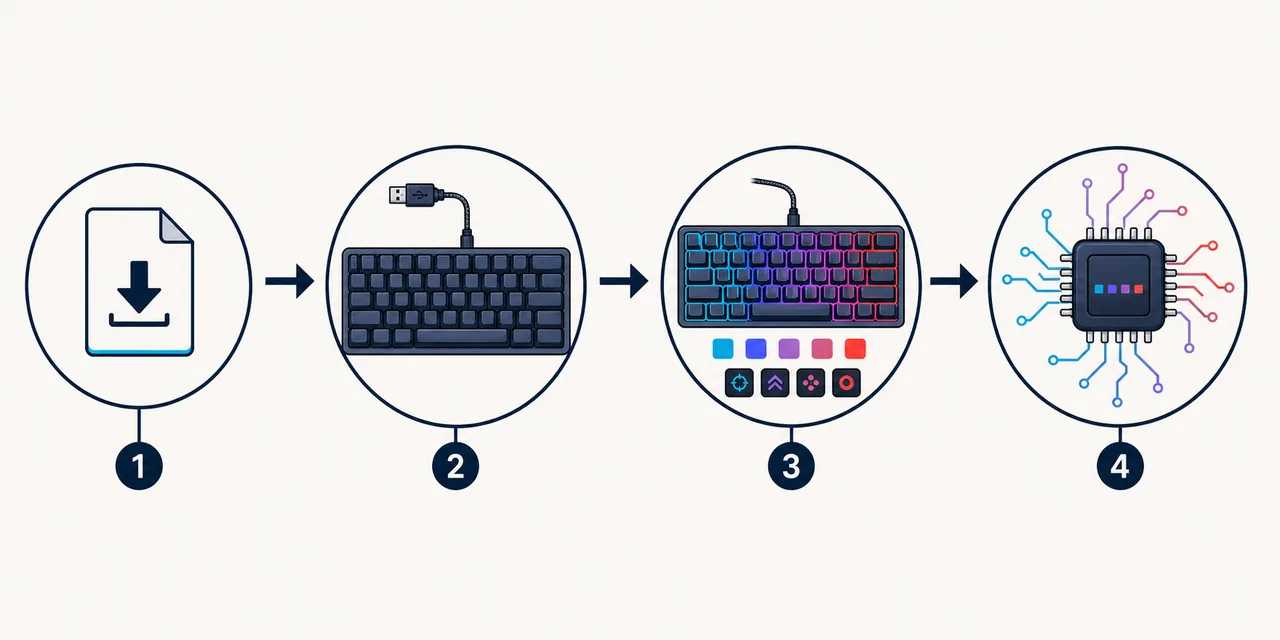
For a Windows keyboard, start with the current iCUE installer from Corsair rather than a third-party driver mirror. The verified installer used by this guide is iCUE 5.49.34 for Windows x64. It is a web installer, so the small initial file may retrieve additional components during setup.
Before downloading, confirm that you are on the official Corsair source, have enough disk space, and know whether an older iCUE branch is required for a documented legacy device. Do not choose iCUE 4 or iCUE 3 simply because an old forum post lists it; confirm the exact model and export important profiles before changing branches.
After the installer opens, allow the installation to finish before connecting several new devices or launching other RGB utilities. A controlled first launch makes it easier to tell whether a problem comes from the installer, a USB path, a service, a firmware state, or a profile.
- 1
Confirm the model and platform
Read the label or product page, confirm Windows x64, and review the exact device in Corsair compatibility guidance.
- 2
Open the verified Corsair source
Use the download button on this page or Corsair Downloads; avoid repackaged installers, guessed versioned filenames, and mirror pages.
- 3
Install iCUE before tuning
Let the web installer retrieve its modules, finish Windows prompts, and restart only when the installer requests it.
- 4
Connect one keyboard for the first test
Use a direct USB connection when possible, launch iCUE, and wait for the keyboard tile before adding other variables.
Set up RGB lighting, macros, and key assignments
Once the keyboard appears in iCUE, select its device tile and begin with a simple lighting layer. A static color or a basic reactive effect is easier to verify than a complex stack of layers. Confirm that the intended keys respond, then add additional effects only after the first result is stable.
Assignments and macros need a separate safety check. Confirm whether a remap applies to the current profile, all applications, or only a selected program. Review the key action before saving, especially when a macro can repeat input, launch an application, or change a control used during work or a game.
Profiles are useful when they represent a clear purpose: a general desktop profile, a game profile, or a hardware-memory profile. Export a backup before a clean reinstall or branch change. If you import a downloaded profile, preview its lighting and assignments first and keep it separate until every device action is understood.
- Start with one lighting layer and verify the result on the physical keyboard.
- Give application-specific profiles clear names and confirm their activation rules.
- Review macro actions before enabling them globally.
- Export profiles before reinstalling iCUE or changing software branches.
- Use the existing profile import guide when a downloaded profile is involved.
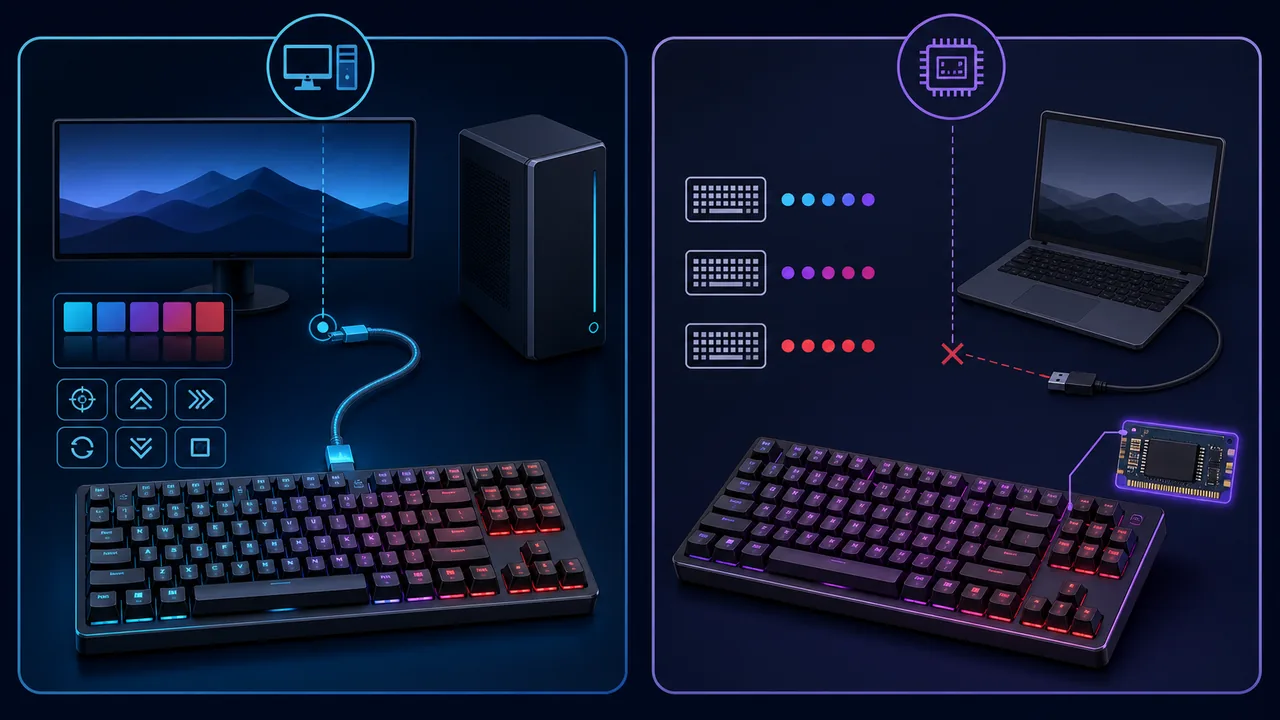
iCUE software mode vs onboard memory mode
Software mode depends on iCUE running in Windows and communicating with the keyboard. It is the flexible path for layered RGB effects, application profiles, detailed assignments, and settings that the device does not store by itself.
Hardware lighting or onboard memory mode stores a limited configuration inside the keyboard. It can keep a basic effect or selected assignment when iCUE is closed, but the available layers and actions vary by model. A saved hardware profile is not proof that every software feature has been written to the device.
Choose the mode based on the result you need. Use software mode when you want dynamic effects or application switching; use onboard memory when you need a simple fallback at another computer or before the iCUE background process starts. Test the keyboard after closing iCUE so you know which settings remain active.
| Mode | Strength | Limitation |
|---|---|---|
| iCUE software mode | Detailed effects, profiles, and application-aware actions | Depends on Windows, iCUE, services, and device communication |
| Hardware lighting | A simple effect can remain after closing iCUE | Fewer layers and device-specific storage limits |
| Onboard profile memory | Useful when moving the keyboard to another computer | Not every macro or software feature can be stored |
If iCUE does not detect your Corsair keyboard
Start with the physical path before reinstalling software. Disconnect the keyboard from an unpowered hub, try a direct port, reconnect the cable, and check whether Windows reacts to the device. Wireless models may need the receiver or wired mode for full iCUE control, and a keyboard that types can still be missing from the software tile because data communication is failing.
Next, close other RGB, motherboard, macro, or peripheral utilities that may claim the same device. Restart Corsair Device Control Service when the service is missing, stopped, or using unusual resources. Then reopen iCUE and allow Windows time to enumerate the keyboard again.
If the keyboard remains absent, check the exact model, firmware state, Windows Device Manager, and the iCUE version. Avoid random firmware files and repeated clean installs without recording the result. If the same device fails on a known-good port or another computer, keep the model and error details for Corsair support.
- 1
Simplify the connection
Use a direct USB port, remove duplicate receivers, and test without an unpowered hub or extension.
- 2
Close competing utilities
Exit other RGB, macro, motherboard, monitoring, and peripheral tools before reopening iCUE.
- 3
Check the background service
Review Corsair Device Control Service and restart it only after saving work and closing iCUE.
- 4
Verify model and firmware
Use the exact keyboard model and official firmware path; do not flash an unverified file.
- 5
Record before escalating
Note Windows version, iCUE version, connection mode, device behavior, and the steps already attempted.
A clean reinstall cannot repair a damaged cable, unstable USB controller, unsupported model, or firmware interruption. Diagnose the connection and device boundary before repeating the installer.
Version freshness, compatibility, and official sources
This download site checked the current Windows installer before publishing this guide. On August 1, 2026, the recorded iCUE 5.49.34 source still returned HTTP 200 from a Corsair-controlled CDN, with a 3,392,176-byte application/octet-stream response and a August 5, 2026 last-modified date. The page therefore uses the existing verified version and does not invent a versioned mirror URL.
The version of the iCUE application is not the same as the firmware version inside a keyboard. Keyboard firmware, supported effects, onboard storage, and available controls vary by exact model. Check Corsair's current downloads and support pages again when you need a newer release or a product-specific firmware instruction.
This page is a guide, not an official Corsair support page. The download CTA opens the verified Corsair source, external references open in a new tab, and the site does not host or repackage the installer.
- Current verified Windows application used here: iCUE 5.49.34.
- Platform checked: Windows x64; Mac and Linux use separate guidance.
- A device-specific support page outranks a generic feature list when the model behaves differently.
- Use the Corsair source instead of a third-party installer mirror.
- Read the compatibility guide before assuming every keyboard feature is supported.
Corsair keyboard software FAQ
What software do Corsair keyboards use?
Corsair keyboards generally use iCUE for lighting, assignments, macros, profiles, firmware checks, and supported device settings. The available controls depend on the exact keyboard model, firmware, connection mode, and Windows build.
Is Corsair keyboard software free?
iCUE can be downloaded from Corsair without a software purchase. Use the official Corsair source and verify the model and platform instead of downloading a repackaged installer from a mirror.
Can I use a Corsair keyboard without iCUE?
Yes for normal typing and for whatever hardware lighting or onboard profile the keyboard can store. Software-only effects, application profiles, and some assignments depend on iCUE and its background communication.
Why is my Corsair keyboard not showing in iCUE?
Check the direct USB path, receiver mode, competing RGB utilities, Corsair Device Control Service, the exact model, firmware, Windows Device Manager, and compatibility. A keyboard can type normally while its software communication is unavailable.
Where should I download Corsair keyboard software?
Use Corsair Downloads or the verified Corsair-controlled installer linked by this guide. Avoid guessed versioned URLs, third-party mirrors, and files that do not identify their source.
Does iCUE work with Corsair keyboards on Mac or Linux?
Platform support and feature coverage differ. Use the separate iCUE for Mac and iCUE for Linux guides, then check the exact keyboard model and connection mode before installing or switching platforms.