
What you need before changing Corsair RAM RGB
Use compatible Corsair RGB memory, a supported motherboard, and the current iCUE branch. Install pending Windows and motherboard updates, restart once, and close other RGB utilities that may claim the same memory. Armoury Crate, MSI Center, Gigabyte Control Center, SignalRGB, OpenRGB, and motherboard plugins can conflict when more than one service writes lighting data.
Open iCUE and confirm that the memory tile appears on the Home screen. If it does not appear, check the exact memory model, motherboard BIOS, chipset drivers, Corsair Device Control Service, and competing RGB software. The memory can remain stable as RAM even when its lighting interface is unavailable.
- Back up important iCUE profiles before major changes.
- Confirm every module is fully seated and detected by BIOS.
- Use one RGB control application during diagnosis.
- Keep XMP or EXPO stability testing separate from lighting tests.
Set the DIMM layout in iCUE
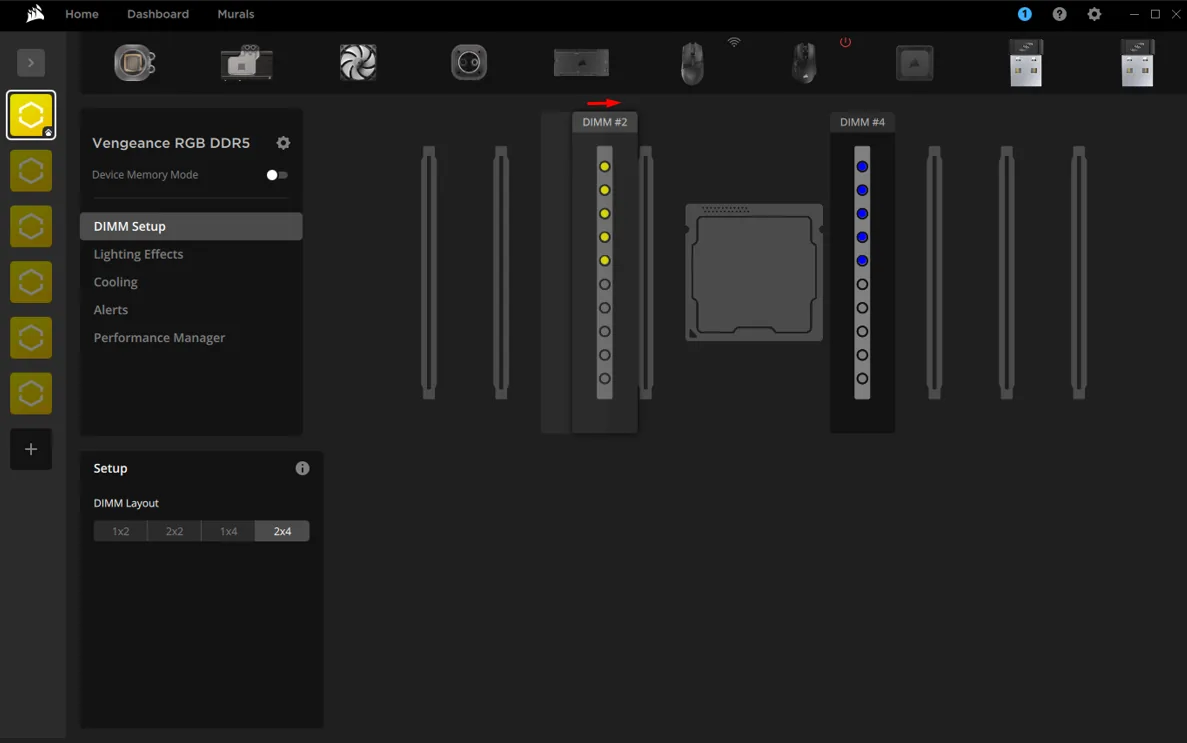
Select the Corsair memory tile, open DIMM Setup, and choose the layout that matches the motherboard. Correct ordering matters for sequential waves, color shifts, and effects that travel across modules.
If the animation moves in the wrong direction, return to DIMM Setup before rebuilding the effect. Compare the labels in iCUE with the motherboard manual rather than assuming the leftmost on-screen module is the first physical slot.
- 1
Open the memory device
Choose the Vengeance or Dominator memory tile on the iCUE Home screen.
- 2
Choose DIMM Setup
Select the detected module count and motherboard slot arrangement.
- 3
Match physical order
Place each module in the same sequence shown by the motherboard manual.
- 4
Test a moving effect
Use a simple wave to confirm direction before adding more layers.
Create and organize RAM lighting effects
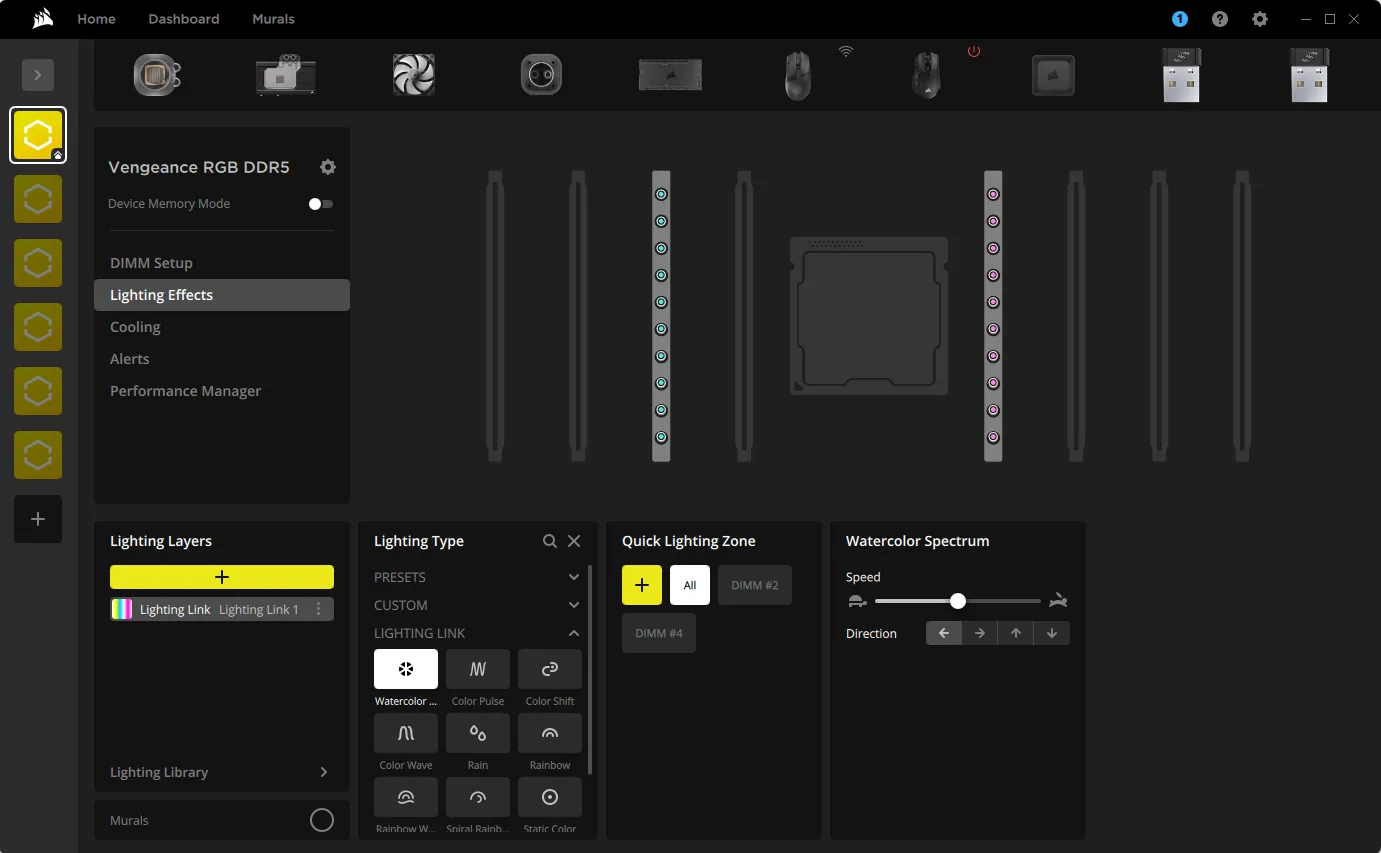
Open Lighting Effects and add a layer. Choose Static Color, Color Shift, Color Pulse, Watercolor, Rainbow Wave, or Lighting Link. Select All for every LED, or choose individual zones for a custom pattern. Keep the first test simple so a failed module, zone, or layer is easy to identify.
Lighting layers are evaluated together. A solid-color layer can cover an animated layer, while a zone-specific layer changes only selected LEDs. Rename layers by purpose, remove unused experiments, and test brightness before assuming a color is incorrect.
| Goal | Starting effect | What to verify |
|---|---|---|
| One steady color | Static Color | All modules and LED zones are selected |
| Movement across modules | Rainbow Wave | DIMM order and direction are correct |
| Whole-system sync | Lighting Link | Other supported devices are online |
| Per-module design | Custom zones | The intended DIMM and LEDs are selected |
Use Device Memory Mode without iCUE running
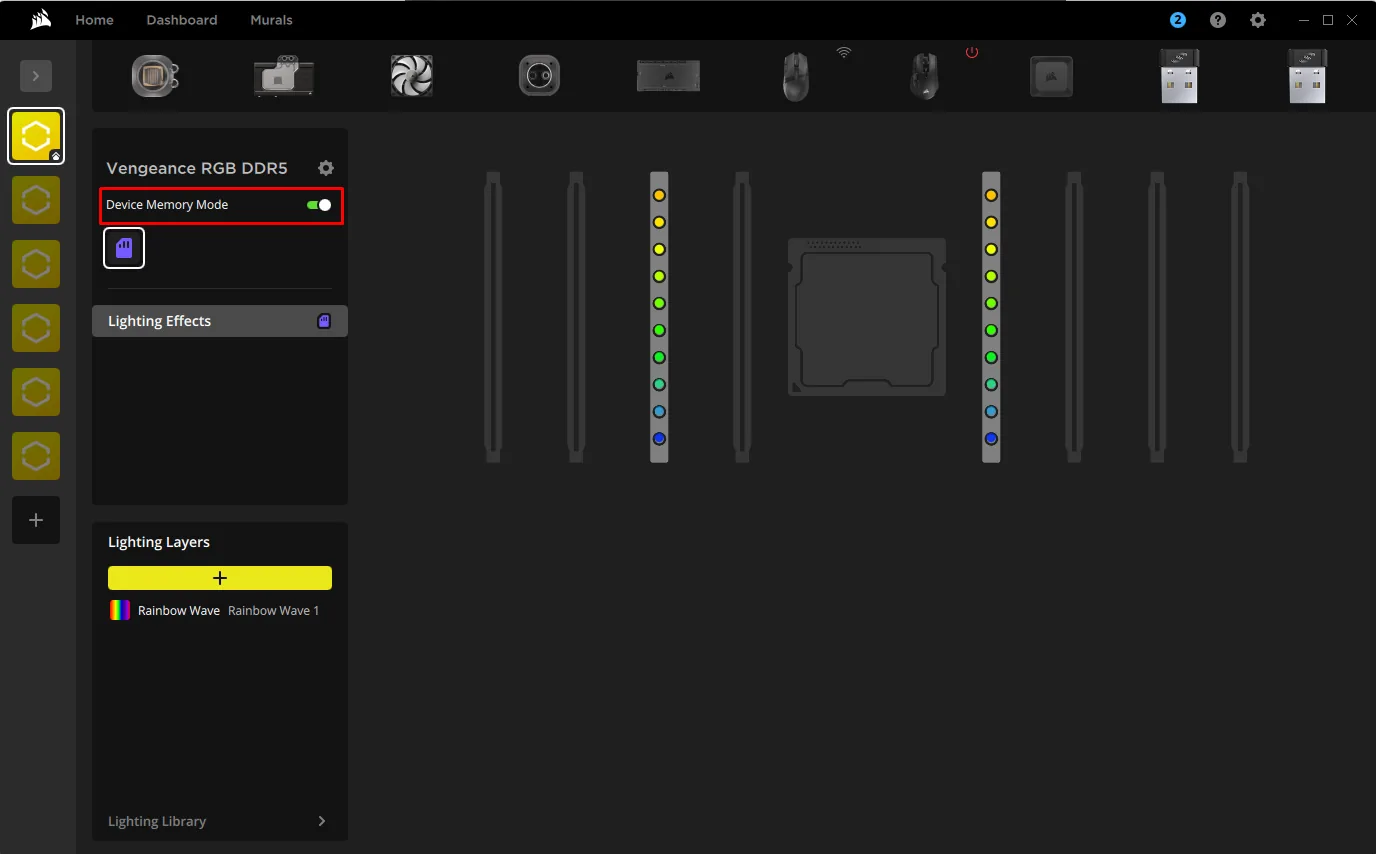
Device Memory Mode stores a supported hardware lighting effect so compatible memory can display it when iCUE is closed or before Windows finishes loading. Enable the mode, choose an effect, apply it, and wait for the save operation to finish.
Hardware mode usually offers fewer layers than active software lighting. If the color changes after iCUE exits, compare the software layer with the saved memory-mode effect instead of assuming the save failed.
Fix Corsair RAM not showing or RGB not syncing
Restart iCUE and Windows, verify the memory in BIOS, and update motherboard BIOS and chipset packages only from the board vendor. Temporarily disable competing RGB software, then restart Corsair Device Control Service. If the tile returns, reintroduce other utilities one at a time.
When one module is detected but dark, test a bright static color on all zones, recheck DIMM order, remove overlapping layers, and test Device Memory Mode separately. If BIOS also misses a module or the PC is unstable, power down and follow hardware diagnostics. Do not reseat memory while the system has power.
| Symptom | Likely area | First safe check |
|---|---|---|
| No memory tile | Detection or service conflict | BIOS, iCUE service, competing RGB apps |
| Wrong animation direction | DIMM layout | Match the physical slot order |
| One module stays dark | Zone, layer, or hardware | Static color on all zones |
| Effect changes after exit | Device Memory Mode | Save the intended hardware effect |
| RGB works but PC crashes | Memory stability | Test XMP or EXPO separately |
Avoid registry cleaners, unofficial firmware, and guessed DLL downloads. RGB problems rarely justify changing memory voltage or timings.
Version freshness and official guidance
This is a download-focused iCUE site. On July 23, 2026, Corsair's official release-notes page listed iCUE 5.69.97. The stable Windows web installer returned HTTP 200, application/octet-stream, 3,392,176 bytes, and a Corsair CDN last-modified date of July 13, 2026. Its bootstrap executable reports product version 1.22.14 because it downloads modular iCUE components during setup.
Use Corsair's stable installer or Downloads page instead of guessing a versioned EXE address. The screenshots on this page come from Corsair's official RAM setup article and show DIMM Setup, Lighting Effects, and Device Memory Mode.
Corsair RAM RGB control FAQ
What software controls Corsair RAM RGB?
Corsair iCUE controls lighting on supported Vengeance RGB and Dominator RGB memory.
Why is my Corsair RAM not showing in iCUE?
Check BIOS detection, the exact memory model, motherboard BIOS and chipset drivers, Corsair Device Control Service, and competing RGB software.
How do I sync all Corsair RAM sticks?
Set the correct DIMM order, select all modules or zones, and test one simple effect before adding layers.
Can Corsair RAM keep RGB settings without iCUE running?
Compatible memory can save a supported fallback effect through Device Memory Mode.
Does changing RAM RGB affect XMP or EXPO?
Lighting settings are separate from timing and voltage profiles. Diagnose memory stability independently.