
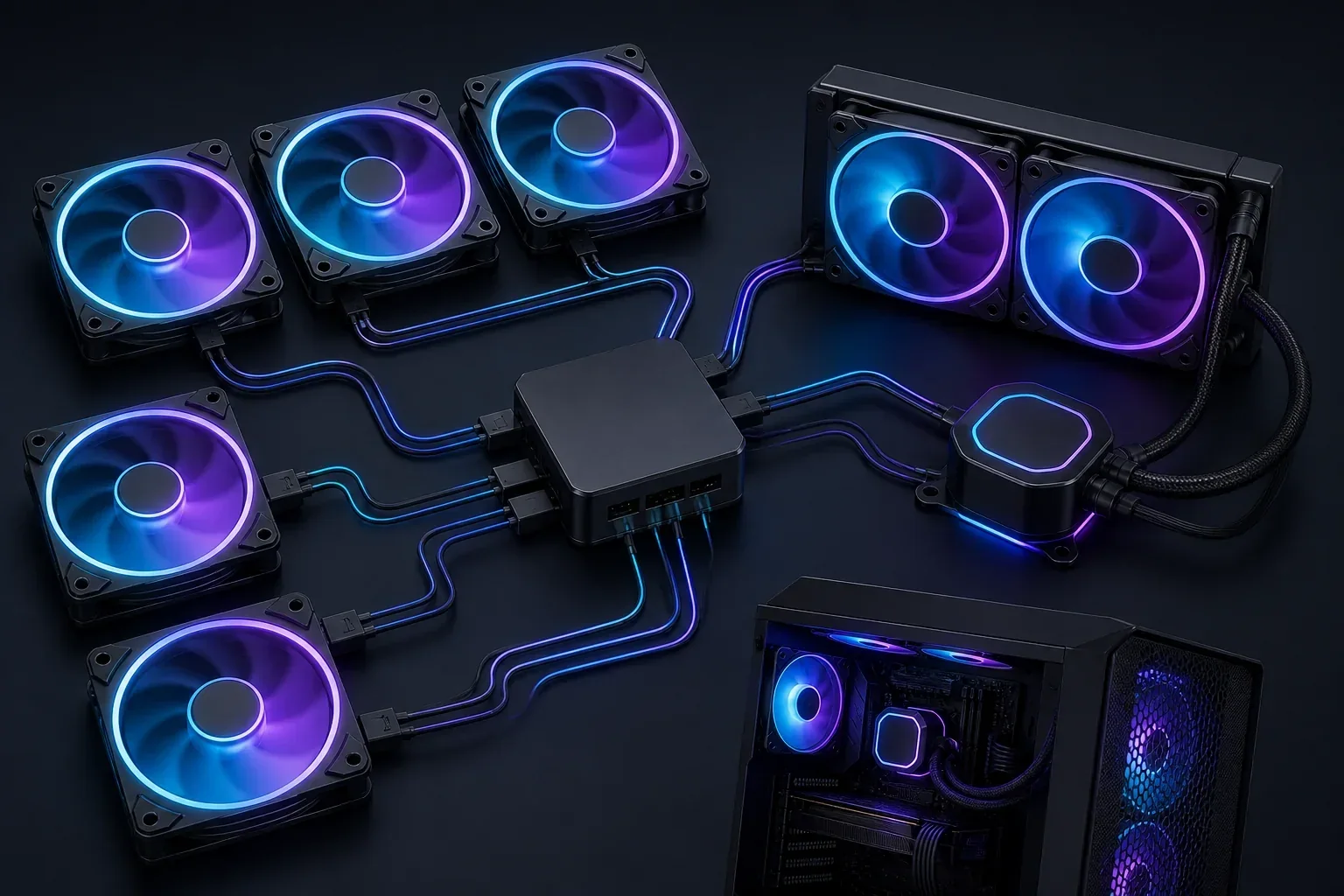
What iCUE LINK controls
iCUE LINK is Corsair's modular connection system for compatible fans, coolers, pumps, and related PC cooling or lighting hardware. The System Hub acts as the bridge between the LINK device chain and the computer, while iCUE provides the software view for lighting, cooling, device status, and firmware tasks.
The product family is not a promise that every Corsair device can share one cable. A current LINK fan, a LINK cooler, an older Corsair Link controller, a motherboard header, and a third-party RGB accessory can have different power, data, and software requirements. Start with the exact model number rather than a similar-looking connector.
| Part of the setup | What it does | What to verify |
|---|---|---|
| iCUE LINK device | Fan, cooler, pump, or compatible accessory | Exact model and supported LINK connection |
| System Hub | Central connection point for the LINK ecosystem | Power, internal USB, ports, and product instructions |
| iCUE software | Device detection, lighting, cooling, and firmware controls | Current Windows build and a clean first test |
| Motherboard and power supply | Provides the host USB and electrical path | Correct headers, power plugs, and no loose cable |
How to set up an iCUE LINK System Hub
Install the current Windows iCUE build before you diagnose a new LINK assembly. The verified site CTA opens Corsair's stable Web Installer URL; it does not host or repackage the EXE. Keep the PC online because the bootstrap installer can retrieve the modules needed by the detected system.
For the hardware path, follow the exact manual for your kit. The safe mental model is power and internal USB for the System Hub, LINK cables from compatible devices to the Hub, then software discovery after Windows has enumerated the USB device. Do not force a connector because a port looks physically similar.
- 1
Install iCUE from the verified source
Use the iCUE 5.49.34 CTA above or Corsair's current download page, then keep the network available during the modular setup.
- 2
Power the System Hub
Connect the required power lead from the kit and check that the plug is fully seated before starting the PC.
- 3
Connect the internal USB path
Use the motherboard USB connection specified by the System Hub manual; avoid an unpowered or shared path while diagnosing detection.
- 4
Attach compatible LINK devices
Run the approved LINK cables between the Hub and compatible fans, coolers, or accessories without mixing unverified controller families.
- 5
Open iCUE and check the device list
Wait for Windows and iCUE to enumerate the Hub, then identify each device before changing lighting, cooling, or firmware settings.
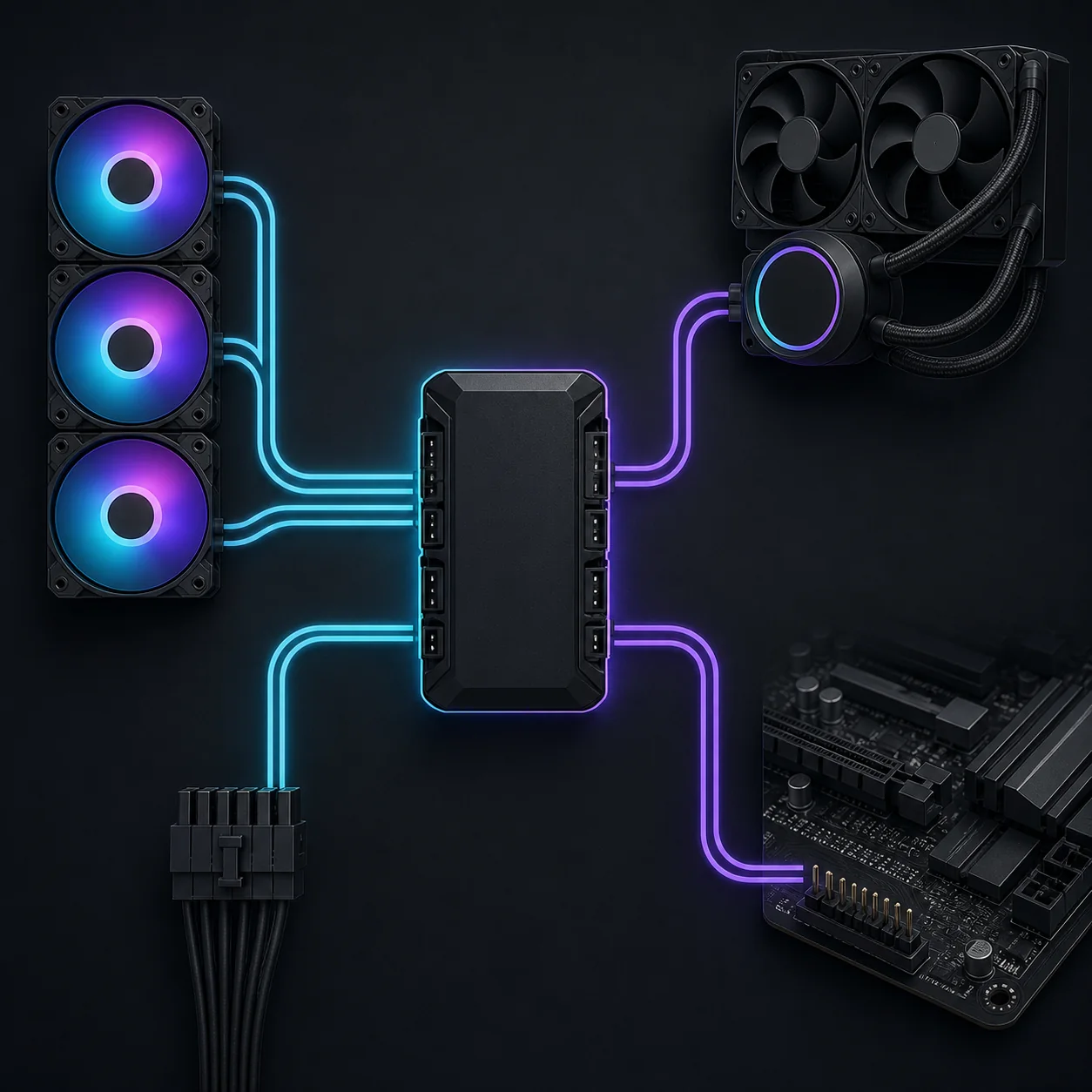
Check iCUE LINK compatibility before you connect
Compatibility is a product-level decision, not just an iCUE version decision. Corsair's current LINK ecosystem includes families such as compatible LINK fans, coolers, pumps, and accessories, but bundle contents and connection rules differ. A product page or manual is the authority for the exact model, included Hub, cable type, and supported firmware path.
If you are moving from older Corsair Link hardware or another RGB controller, inventory the devices first. Keep the new LINK test small: one Hub, one known-compatible device, the required power and USB connections, and no extra RGB utility. Add the remaining devices after the first one is visible in iCUE.
- Record the full model name, not only a family label such as QX, RX, or TITAN.
- Confirm whether the kit includes a System Hub or expects an existing compatible Hub.
- Check the manual for power, internal USB, port, and cable limits before daisy-chaining.
- Test iCUE alone before adding Armoury Crate, SignalRGB, motherboard utilities, or other RGB services.
- Use the site's broader compatibility matrix when the question is about Windows, macOS, or device support outside LINK.
Update iCUE LINK firmware safely
Firmware is attached to the device or controller, not the same thing as the iCUE application version. Once the Hub and devices are visible, open the device settings in iCUE and use the update action offered for that exact hardware. A firmware option can differ by model, current firmware, and recovery state.
Keep the PC powered, do not unplug the Hub or device, and do not close iCUE while the update is in progress. If the update fails, record the model, current firmware, iCUE version, connection path, and the exact message before trying a recovery action. Use Corsair's official support instructions or the site's general firmware guide rather than downloading a random firmware file.
- 1
Stabilize the connection
Close competing RGB utilities, verify power and USB, and make sure the Hub remains visible in iCUE before starting.
- 2
Open the device settings
Select the Hub or device tile in iCUE and read the offered firmware status; do not apply a file meant for another model.
- 3
Let the update finish
Keep power, USB, and the LINK cable path unchanged until iCUE reports completion and the device returns to the list.
- 4
Recheck lighting and cooling
After the update, test detection, lighting, fan response, pump behavior, and saved profiles before reconnecting extra devices.
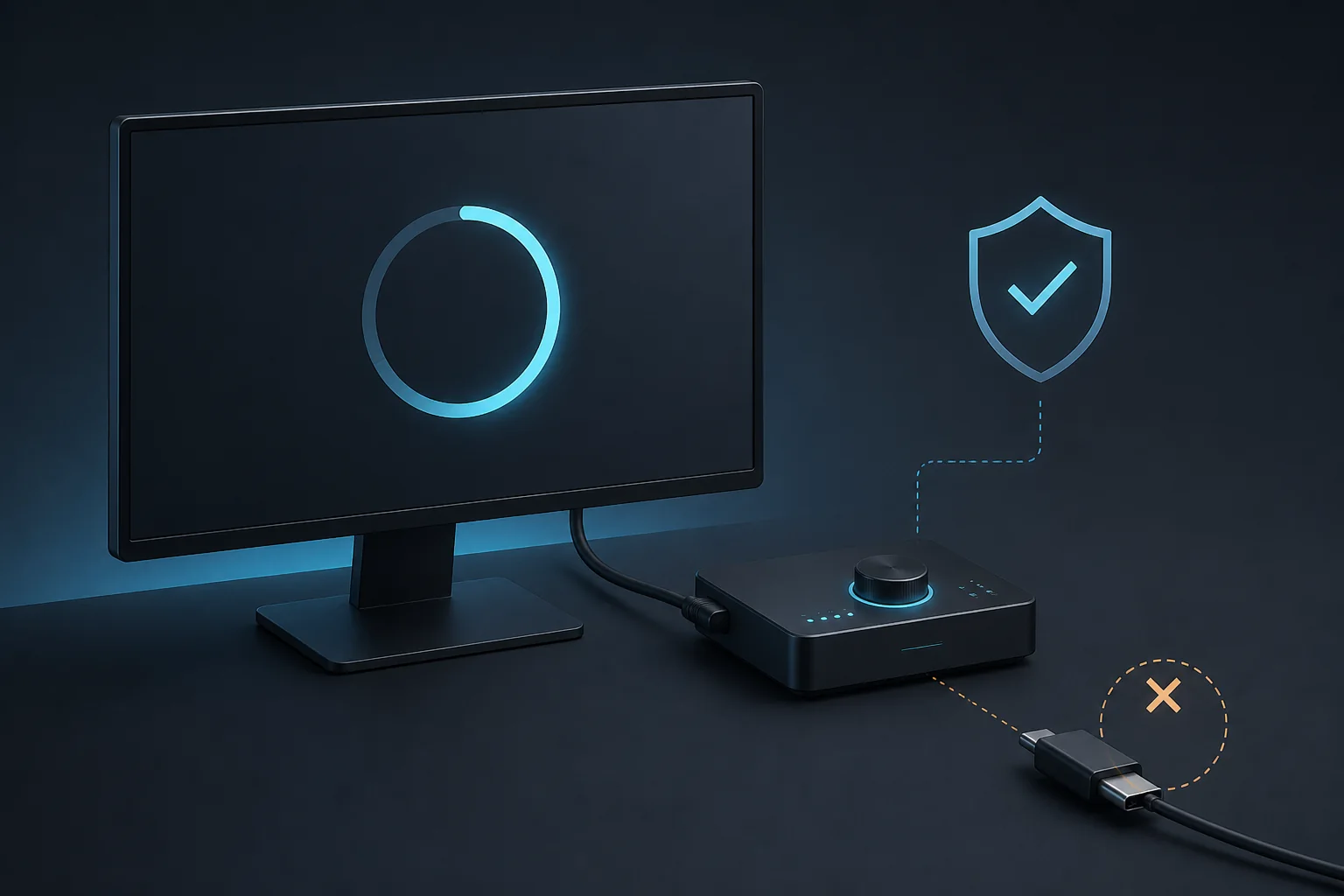
When iCUE LINK is not detected
Start with the physical path, not a repeated reinstall. Check that the Hub has power, the internal USB connection is on the expected motherboard header, and each LINK cable is fully seated at both ends. Test one known-compatible device, then add the rest one at a time so the first failing connection is visible.
If the Hub is visible but a device is missing, close other RGB and motherboard utilities, restart iCUE, and check the exact model's firmware and compatibility notes. If the Windows service is missing or using unusual resources, use the existing Corsair Device Control Service troubleshooting page before changing multiple variables at once.
- Power off before reseating internal cables and follow the product manual's safety steps.
- Check the Hub, internal USB, power connector, and LINK cable path in that order.
- Remove extra controllers or third-party RGB utilities from the first diagnostic pass.
- Record the exact missing device, iCUE version, firmware status, and Windows message.
- Escalate to Corsair support with the model and evidence if the same device fails on a known-good path.
Current iCUE version and verified download facts
This download-focused site checked the official Corsair release notes and stable Windows Web Installer before publishing this guide. The current verified Windows application is iCUE 5.49.34, released on August 5, 2026. On August 7, 2026, the stable installer URL returned HTTP 200 with MIME type application/octet-stream and a 3,392,176-byte response.
The recorded SHA-256 is 7FC57CD8D658EF703E36C1D4EEE3C27B21E66DC12CC240AE8840F1A50387A9FE. The button opens the final Corsair-controlled file URL; this site does not host or repackage the installer. If Corsair changes the unversioned URL or release state, check the official notes again before treating this record as current.
- Version checked: iCUE 5.49.34
- Release date: August 5, 2026
- Installer: Windows x64 Web Installer
- Response size: 3,392,176 bytes
- Source: stable www3.corsair.com installer URL
iCUE LINK questions answered
Do I need iCUE to use an iCUE LINK System Hub?
For software-based lighting, cooling control, device status, and firmware updates, use the current iCUE application. A physical connection can still power hardware, but it does not replace the software path for those controls.
Does every iCUE LINK setup include a System Hub?
No assumption is safe across every bundle. Many iCUE LINK builds use a System Hub, while a product package may include one or expect an existing compatible Hub. Check the exact product box, manual, or Corsair listing before buying a separate controller.
How many devices can connect to the iCUE LINK System Hub?
Corsair's iCUE LINK overview describes support for up to 24 devices on the System Hub. Treat that as an ecosystem overview, not permission to ignore the port, power, cable, and exact-product limits in your kit's manual.
How do I update iCUE LINK firmware?
Install a current iCUE build, make the Hub and device visible, open the device settings, and use the firmware action offered for that exact model. Keep power, USB, and LINK cables connected until iCUE reports completion; if it fails, record the message and use Corsair's support path.
Can I use RX120 fans without an iCUE LINK Hub?
Do not infer compatibility from the connector shape. Check the specific fan package and Corsair manual for the required Hub, power, and cable path. If the product is not documented for a direct motherboard or alternate-controller connection, use the supported System Hub setup instead.
What should I check when an iCUE LINK device is not detected?
Check Hub power, the internal USB header, cable seating and direction, one-device testing, competing RGB software, and the exact model's firmware status. If the Hub or Windows service is still missing, use the Device Control Service troubleshooting guide and keep the exact error details for support.