What is iCUE software and what does it do?
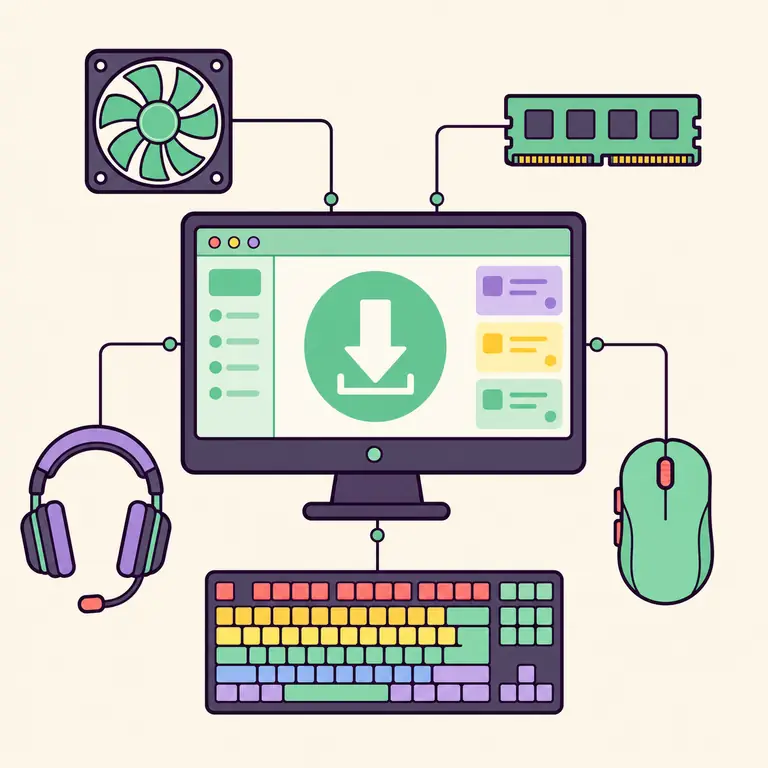
iCUE identifies supported hardware and provides the settings implemented for each device. A keyboard can expose lighting layers, key assignments, macros, performance options, and onboard memory. A mouse can add DPI stages and button remaps. A headset can add equalizer and microphone controls. Cooling hardware can expose pumps, fans, temperature sensors, LCD content, and alerts.
The software also coordinates settings across devices. A profile can apply a shared lighting theme to a keyboard, mouse, memory, and fans, then switch when a game or application opens. This coordination is the main reason to use iCUE instead of treating each device as an isolated utility.
In short, iCUE software is Corsair's control center for supported hardware. It can coordinate RGB lighting, profiles, macros, DPI, audio, cooling, sensors, and LCD content when the device and connection path expose those controls. It is not a universal RGB controller, so check the exact model before assuming a feature is available.
| Area | Examples | Depends on |
|---|---|---|
| RGB lighting | Layers, effects, scenes, Murals | LED zones and supported devices |
| Assignments | Remaps, macros, shortcuts | Keyboard or mouse capabilities |
| Audio | EQ, microphone, sidetone | Supported headset and connection |
| Cooling | Fan curves, pump modes, sensors | Controller and cooler hardware |
| Profiles | App switching and shared settings | Software and hardware profile support |
Software profiles and hardware profiles
A software profile is managed by iCUE while the application is running. It can coordinate several devices and react to an application trigger. A hardware profile is saved to onboard memory on a supported device and can operate when iCUE is not running, but it usually has fewer effect and assignment options.
This difference explains why a lighting effect can disappear after iCUE closes. The effect may exist only in the active software profile. To use onboard behavior, open the device's hardware settings, choose effects and assignments supported by onboard memory, then save them to a hardware slot.
- Software profile: richer controls while iCUE runs.
- Hardware profile: saved to supported onboard memory.
- Application trigger: changes software profile for a game or program.
- Imported profile: review actions before activation.
Do you need iCUE for Corsair hardware?
Many peripherals provide basic behavior without iCUE: a keyboard types, a mouse moves, and an analog headset plays audio. iCUE becomes important for advanced features such as synchronized lighting, macros, remaps, DPI configuration, firmware tools, battery status, equalizer presets, fan curves, temperature alerts, and LCD content.
If you only need basic input and the device stores a suitable hardware profile, you may not need iCUE running at all times. If several devices must react together or switch with applications, the software profile engine needs to remain available.
iCUE 5, modules, and updates
The current iCUE 5 installer is modular. The small initial EXE retrieves modules needed for the system. This reduces the first download size but makes network access important during setup and repair. If the initial EXE opens but setup later fails, troubleshoot module retrieval and system state rather than assuming the browser download is corrupt.
Before a major update, export profiles and record critical settings. Finish Windows updates, restart, and close competing device-control tools. After the update, confirm devices and firmware before restoring advanced profiles. This sequence keeps a software update, firmware change, and profile migration from becoming one hard-to-diagnose event.
Privacy, telemetry, and account considerations
iCUE runs with access to connected hardware and stores local configuration needed for profiles and modules. Review Corsair's current privacy information for product telemetry and service behavior. This independent site does not receive the file you download from the Corsair CDN and does not provide an iCUE account.
For downloaded community profiles, inspect macros and actions just as you would inspect any imported automation. Avoid executable profile wrappers and keep backups. The profile source, author, compatibility information, and file type are more useful trust signals than a colorful preview alone.
Decide how much iCUE control your PC needs
Begin with the hardware task, not the size of the feature list. A user who only needs a keyboard's stored lighting may configure an onboard hardware profile and leave iCUE closed afterward. A user who needs application-specific macros, synchronized desktop lighting, live sensor dashboards, headset processing, or dynamic cooling normally needs the iCUE service and software profile active. The right setup depends on which behavior must continue when the application is not running.
For a simple system, install current iCUE, update only when appropriate, configure the device, and test whether the needed settings save to onboard memory. Hardware storage varies by model and supports fewer effects or actions than a software profile. Do not assume every visual layer, macro, or integration can run from the device alone. Verify the result after completely closing iCUE and after restarting Windows.
For a multi-device system, plan ownership of each control. Decide which utility manages motherboard lighting, memory, fans, pumps, peripherals, and audio. Plugins can connect ecosystems, but two background services trying to write the same lighting or sensor channel may cause flicker, missing devices, or settings that revert. Keep one clear owner for each function and add integrations only after the standalone devices are stable.
Review startup and privacy choices with the same care as visual settings. Decide whether iCUE should launch with Windows, whether an account or cloud-related feature is needed, and which community profiles are trustworthy. Imported profiles can contain assignments and launch actions, so inspect them before use. Obtain installers and updates from Corsair-controlled sources rather than executable wrappers attached to profile collections.
Maintain a recovery path. Export profiles, record device models and controller connections, and keep notes for important cooling or key-assignment settings. After a major Windows, firmware, or iCUE change, verify basic detection before restoring advanced integrations. This staged approach explains what iCUE is doing on the PC and makes any later problem easier to isolate. Review the inventory after replacing a receiver, hub, or motherboard because the same visible device may now use a different control path. Keep the last known working branch and profile export date with those notes.
| Use case | iCUE role | Practical setup |
|---|---|---|
| Stored basic settings | Configure supported onboard memory | Test with iCUE closed |
| Application profiles | Run triggers, macros, and dynamic effects | Keep the service active and inspect actions |
| Cooling and sensors | Apply supported curves and dashboards | Back up known-safe settings |
| Multi-device RGB | Coordinate supported devices and plugins | Assign one control owner per function |
What is iCUE FAQ
Is iCUE only for RGB lighting?
No. Depending on the device, it can manage assignments, macros, DPI, audio, cooling, sensors, firmware, LCD content, and profiles.
Does iCUE have to run all the time?
Software profiles and synchronized effects normally need it running. Supported hardware profiles can keep a smaller set of settings in onboard memory.
Is Corsair iCUE free?
Yes. Corsair distributes iCUE as free device-control software.
Can iCUE control fan speed?
It can control supported fans, pumps, and sensors connected through compatible Corsair cooling hardware.
Can iCUE control any RGB device?
No. Support depends on the exact Corsair device or an available integration or plugin.
What is iCUE software used for?
iCUE software is used to configure supported Corsair devices. Depending on the model, it can manage lighting, profiles, key and button assignments, macros, DPI, headset audio, fan curves, sensors, firmware, and LCD features.