
Should you download iCUE 4 for your device?
An iCUE 4 download makes sense when a specific older Corsair device, plugin, saved workflow, or compatibility note points to the iCUE 4 branch. It is not the automatic answer for a slow installer, a missing device, or a Windows 10 PC. Those symptoms can come from a blocked network, a pending restart, a competing RGB utility, a service problem, or a connection issue. Downgrading before identifying the cause can make the original problem harder to reproduce.
Start with the exact model, connection mode, Windows architecture, and feature you need. A keyboard may still type while its iCUE lighting or macro controls are unavailable. A cooler may power its fans while its controller is not visible to the software. Those differences are useful evidence, but they do not prove that iCUE 4 is the right branch. Check the site's compatibility guide and the official Corsair product information before you replace a working installation.
For a current device, begin with the verified iCUE 5 path on the homepage or the Windows 10/11 guide. Choose iCUE 4 as a controlled compatibility test, keep a return plan, and record what success should look like. If you cannot name the device or feature that the older branch is expected to fix, do not download an old installer simply because a forum post lists a version number.
| Branch | Use it when | Main caution |
|---|---|---|
| iCUE 5 | Current supported devices and normal installation | A legacy device may need a separate compatibility check |
| iCUE 4 | A documented device or workflow needs the legacy branch | Older fixes, modules, and support context |
| iCUE 3 | A verified historical device specifically requires it | Historical software with a wider support and security gap |
iCUE 4.33.138 download source and version facts
Corsair's iCUE page currently lists iCUE 4.33.138 as the Windows iCUE 4 release line. Use the official page above to locate the legacy entry and read the surrounding compatibility information. The page is the safer destination for an old-version query because it can change the file or instructions without forcing this site to guess a historical CDN path.
This site checked the current iCUE 5 Windows record on August 22, 2026 before adding this page. The current web installer remains iCUE 5.49.34, with an HTTP 200 response, an `application/octet-stream` MIME type, 3,392,176 bytes, and a CDN Last-Modified value of August 5, 2026. That current record did not need to be changed. The iCUE 4 branch is treated as a compatibility fallback, not as the latest release.
The official historical MSI response was also checked. It returned the expected `.msi` filename, a 1,198,374,912-byte response, and a January 31, 2023 Last-Modified value, but its server reported `text/plain` instead of an installer MIME type. Because the file identity cannot be described as MIME-verified from that response, this page uses Corsair's official iCUE page as the CTA rather than presenting a guessed or weakly verified direct file link.
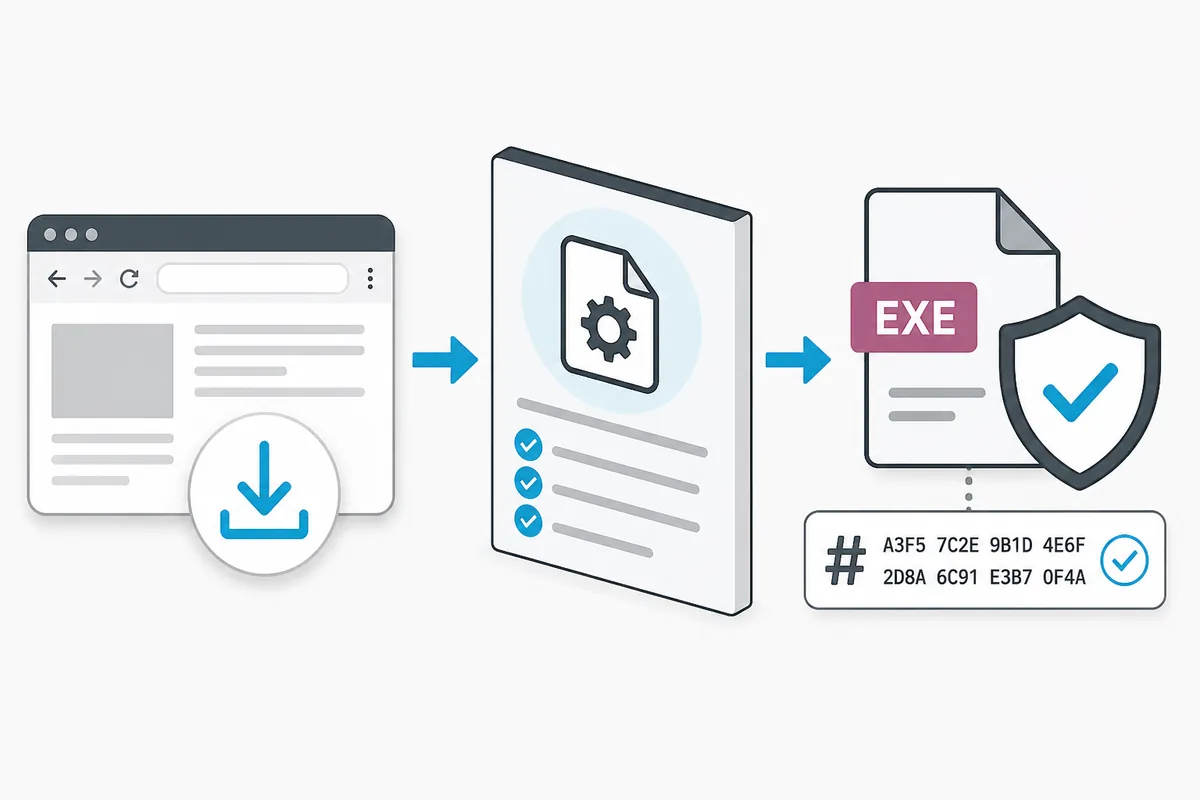
Prepare before changing from iCUE 5
Changing a major iCUE branch can affect profile storage, modules, plugins, firmware prompts, and the devices that appear in the application. Export important software profiles to a separate folder and name each copy with the device, purpose, and date. Keep the original file as well as any edited copy, and note which iCUE branch created it.
Write down the exact hardware inventory and the problem you are testing. Include the product model, USB receiver or wired path, Windows build, current iCUE version, and the first feature that fails. Record cooling curves, DPI stages, key assignments, macros, lighting layers, and application triggers that would be difficult to recreate. This turns an old-version download into a test with evidence rather than a one-way change.
Do not confuse a software profile with settings stored in device memory. Some Corsair devices can keep a limited lighting or assignment state when iCUE is closed, but software-only effects, application rules, sensor behavior, and every macro are not guaranteed to survive a branch change. Test the hardware mode before cleanup if a basic fallback matters.
- 1
Export profiles
Save the profiles you need outside active iCUE folders and keep an untouched copy.
- 2
Record the device reason
Write the exact model, connection path, missing feature, and expected result.
- 3
Finish Windows updates
Complete pending updates and restart so a version test is not mixed with a pending reboot.
- 4
Close competing utilities
Temporarily close other RGB, motherboard, monitoring, and peripheral-control applications.
- 5
Keep a return path
Record the current installer source and decide how you will restore iCUE 5 if the test fails.
Install iCUE 4 and test the legacy reason
Use the official Corsair page to select the iCUE 4.33.138 entry, then follow the installer instructions shown there. The first test should be as small as possible: keep the exact device that motivated the change connected, disconnect nonessential Corsair hardware when practical, and avoid importing every profile immediately. A small test makes it easier to tell whether the branch changed detection or whether another variable changed at the same time.
After the installation, wait for the application and its modules to finish loading before changing firmware or applying a complex profile. Check the device tile, the basic control that was missing, and the connection path. If the device is still absent, stop repeating installers. Inspect the cable, receiver, USB controller, device support, competing utilities, and service state instead. A legacy branch cannot repair a failed USB path or an unsupported product.
If iCUE 4 fixes the defined problem, document the trade-off before using it every day. Note which newer devices, modules, integrations, fixes, and profile features are no longer available. Keep the installer source and your test notes, but do not redistribute the package or describe the legacy branch as a current security recommendation.
- 1
Open the official legacy entry
Use Corsair's iCUE page and confirm that the entry is iCUE 4.33.138 before starting.
- 2
Test one device first
Connect the hardware that created the compatibility need and leave unrelated devices out of the first test when possible.
- 3
Check the target control
Verify detection, the specific lighting or assignment feature, and the expected plugin or profile behavior.
- 4
Stop when the evidence is clear
If the symptom is unchanged, do not keep trying older packages from random mirrors.
- 5
Record the result
Keep the branch, device model, test date, missing features, and return plan together.
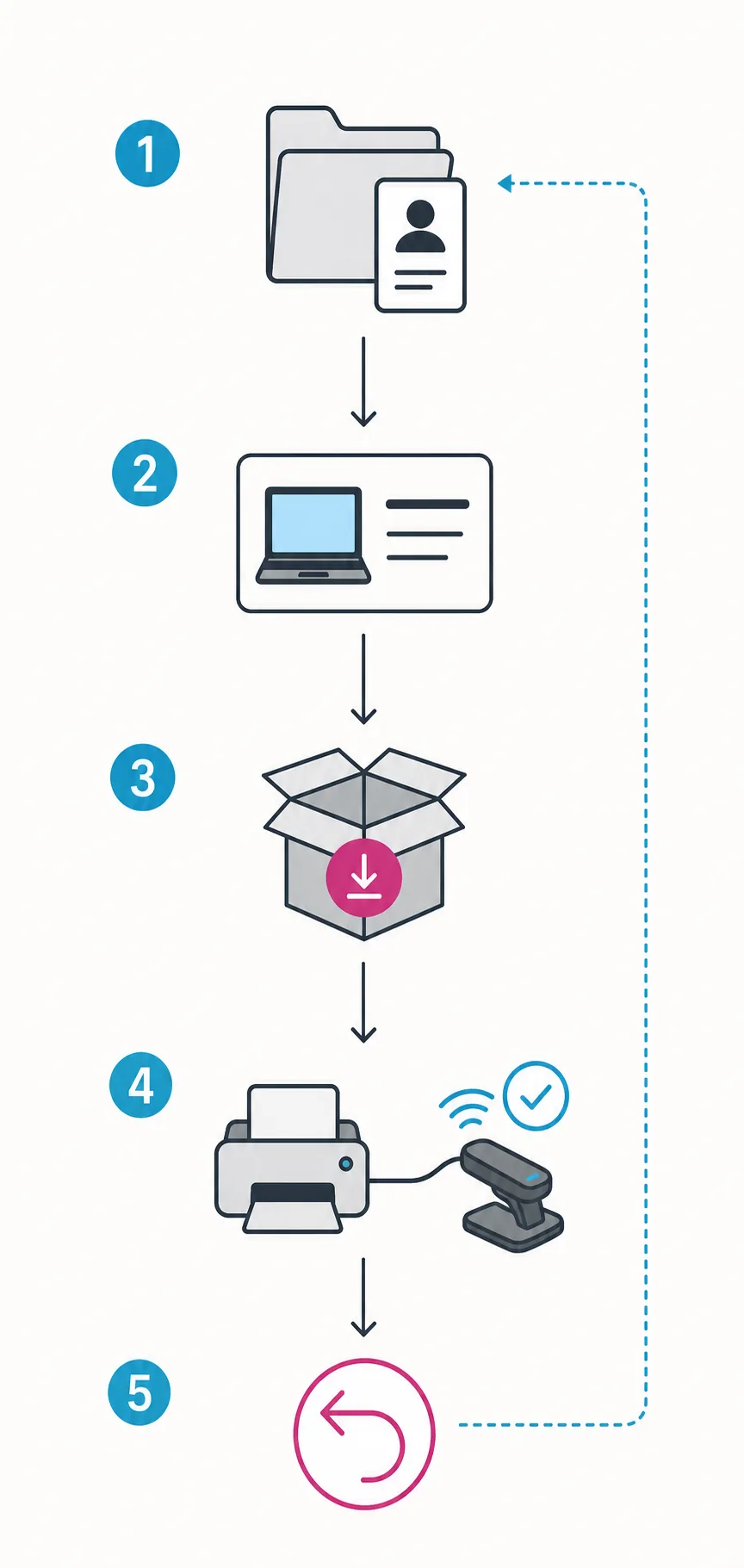
iCUE 4 vs iCUE 5: compatibility, support, and trade-offs
iCUE 5 is the normal starting point for supported current hardware. iCUE 4 remains relevant when a documented older device or workflow needs the earlier branch, but the two branches are not interchangeable labels for the same support surface. A product family name is not enough: exact model, firmware, connection mode, required plugin, and the feature you want all matter.
A profile that opens in both branches can still behave differently. Lighting layers may reference a different device, macros can depend on a different action map, and a cooling or sensor setting may not expose the same controls. Export before switching and import one profile at a time after the branch is stable. If the profile is from another computer, remove unknown application paths or actions before enabling it.
Windows 10 by itself is not a reason to download iCUE 4. Current supported Windows 10 hardware should use the current route described in the Windows 10 guide. Use the older branch only when the exact device evidence makes that choice more useful than the current release.
| Decision point | Prefer iCUE 5 | Consider iCUE 4 |
|---|---|---|
| Hardware age | Current or recently supported product | Older model with an explicit legacy requirement |
| Installer problem | Fix network, permission, service, or module retrieval first | Only after the failure is proven to be branch-specific |
| Profiles | Current profile and current device support | A known profile or plugin workflow depends on iCUE 4 |
| Long-term use | Better current fixes and broader current support | Accept older fixes and plan a return when possible |
Return to current iCUE when the legacy reason disappears
A successful iCUE 4 test does not have to become a permanent downgrade. Recheck Corsair's current compatibility information after a later release, device firmware update, or plugin change. If the original issue is resolved, export a fresh profile from the working legacy setup and write down which settings must be recreated rather than assuming that every item will migrate.
Before returning to iCUE 5, complete Windows updates, preserve the profile backup, and use the current verified source. Test device detection before importing profiles, then import one profile at a time. If the current installer fails, use the iCUE download failed guide or the Windows 11 guide instead of cycling through increasingly old packages.
The objective is a known, supportable configuration. If a device works only in the old branch, record that limitation and avoid claiming that every Corsair product should be downgraded. If the device fails in both branches, the next useful evidence is usually the connection path, firmware state, service, exact model, or a competing hardware-control utility.
- Export the working legacy profile before changing branches again.
- Confirm the current iCUE branch and exact device support before upgrading.
- Test detection and basic control before importing profiles.
- Restore profiles one at a time and remove unsupported actions.
- Keep the old-version source note without redistributing the installer.
If the iCUE 4 installer or device still fails
Separate the download stage from the installation and detection stages. If the official page does not open or the file never arrives, investigate browser, DNS, filtering, proxy, and network access. If an installer opens but later fails, check pending restarts, free disk space, permissions, module retrieval, and remnants of the previous branch. If the installation completes but the device is missing, focus on connection, exact-model support, firmware, service state, and competing utilities.
Do not solve a version question by running several installers at once. Do not use a random mirror just because it exposes a shorter filename, and do not delete Corsair services or registry entries before recording the symptom. These actions remove evidence and can turn a version test into an untracked cleanup problem.
When the result is still unclear, return to the broader iCUE versions guide and keep the exact error, device model, branch, and source date in your notes. That information is more useful for Corsair support and for a later upgrade than a list of unverified files tried in sequence.
| What happened | Next check | Do not assume |
|---|---|---|
| The official page or file does not open | Browser, DNS, filtering, proxy, and network access | An older mirror is automatically safer |
| Setup stops after launch | Restart, permissions, disk space, modules, and old installation state | The browser download itself is corrupt |
| iCUE opens but the device is absent | Exact model, USB or receiver path, firmware, service, and competing utilities | Installing an older branch repairs hardware communication |
| A profile imports incorrectly | Branch, device layer, macros, paths, and application triggers | The installer failed |
Version freshness and official-source notes
This page was checked on August 22, 2026. Corsair's iCUE page listed iCUE 4.33.138 for Windows as the iCUE 4 legacy release, while the site's current Windows record remained iCUE 5.49.34. The page does not call iCUE 4 the latest release, does not claim that every legacy device needs it, and does not host a copied installer.
Use the official [Corsair iCUE downloads page](https://www.corsair.com/us/en/explorer/icue/) for the release entry and the [Corsair Downloads page](https://www.corsair.com/us/en/s/downloads) when the source layout changes. If a historical direct file changes its headers, expires, or no longer appears in the official page, keep the official page as the fallback instead of guessing a mirror or a versioned URL.
iCUE 4 download FAQ
Where can I download iCUE 4?
Use Corsair's official iCUE downloads page and select the iCUE 4.33.138 legacy entry when your exact device or workflow requires it. This site does not host or repackage the installer.
Is iCUE 4.33.138 the latest iCUE version?
No. It is the legacy iCUE 4 release line. The current Windows record on this site is iCUE 5.49.34, so current supported hardware should normally start with iCUE 5.
Should I download iCUE 4 because I use Windows 10?
Not by default. Windows 10 users should use the current supported route unless the exact Corsair device, plugin, or saved workflow has a documented iCUE 4 requirement.
Is iCUE 4 better than iCUE 5?
Neither branch is universally better. iCUE 5 is the normal current choice, while iCUE 4 can be the more useful compatibility branch for a specific legacy device or workflow. Compare the exact model and feature before changing.
Can iCUE 4 profiles be used in iCUE 5?
Some profiles may import, but device layers, macros, application paths, and effects can differ. Export a backup and test one profile at a time instead of assuming that every setting will migrate.
Why does this page use the official download page instead of a direct old MSI link?
The historical MSI response was reachable and had a stable-looking filename, but its server MIME was text/plain. Using the official Corsair page avoids presenting a file with an unverified content type as a safe direct download.