
Should you download iCUE 3 for your device?
Choose an iCUE 3 download only when the exact Corsair model, plugin, saved workflow, or support note gives you a reason to test that historical branch. A keyboard that types but loses lighting control, a cooler whose controller is absent, or a profile created for an older branch can justify investigation. None of those symptoms alone proves that iCUE 3 is the answer.
| Branch | Use it when | Main caution |
|---|---|---|
| iCUE 5 | Current supported devices and normal installation | Still verify the exact model and firmware |
| iCUE 4 | A documented legacy workflow needs the earlier branch | Older modules and support context |
| iCUE 3 | A verified historical device specifically requires it | Wider age, support, and security gap |
iCUE 3.38.88 download source and version facts
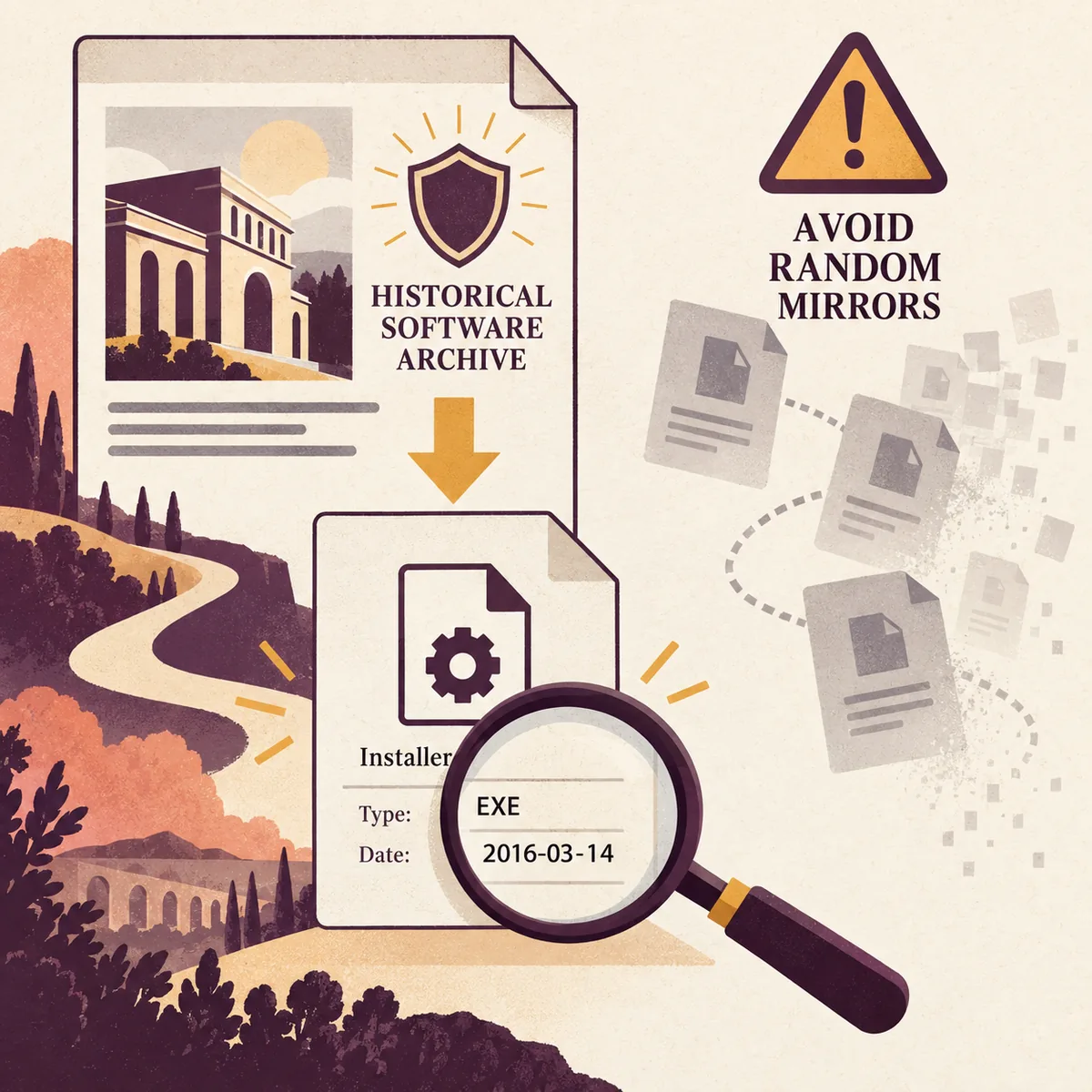
Corsair's public iCUE page showed an iCUE 3.38.88 historical entry when checked on October 8, 2026. The official page is the source to use because its release list, file identity, and instructions can change without this site guessing a dated CDN path. Select the historical entry only after matching the device reason and Windows architecture.
The observed page responded successfully, but this guide does not turn that response into a permanent direct installer link. Historical files may move, expire, or return headers that do not clearly identify an installer. A safe iCUE 3 download therefore means opening Corsair's current page, checking the visible release label, and recording the date of your own check.
Check iCUE 3 compatibility before installing
A family name is not a compatibility proof. Record the exact product model, product code when available, firmware state, wired or wireless path, and the control you need. Older keyboards, mice, headsets, coolers, memory modules, and controllers can expose different controls even when they share a Corsair product family.
Separate software behavior from hardware behavior. Onboard memory may preserve a simple lighting or assignment mode while iCUE-specific effects, application rules, sensors, macros, and cooling controls disappear. Test the device in its basic connection mode before uninstalling the current branch, and save evidence of the original symptom.
| Check | Record before the change | Why it matters |
|---|---|---|
| Device identity | Exact model, receiver or USB path, firmware | Family names can hide different support |
| Feature | Lighting, macros, DPI, sensor, cooling, or plugin behavior | Defines a measurable success test |
| System | Windows edition, x64 architecture, updates, free disk | Separates platform issues from branch issues |
| Return plan | Current source, profile export, and reinstall path | Makes the test reversible |
Back up profiles and prepare Windows
A version change can affect profile folders, modules, plugins, firmware prompts, and the devices shown in the application. Export important profiles to a separate folder and keep one untouched copy. Name each backup with the device, purpose, iCUE branch, and date so you can tell which file came from the historical test.
Write down the current iCUE version, Windows build, connected hardware, USB or receiver path, and first failing feature. Capture lighting layers, DPI stages, key assignments, macros, cooling curves, sensor dashboards, and application triggers that would be difficult to recreate. This turns an old-version download into an evidence-based test.
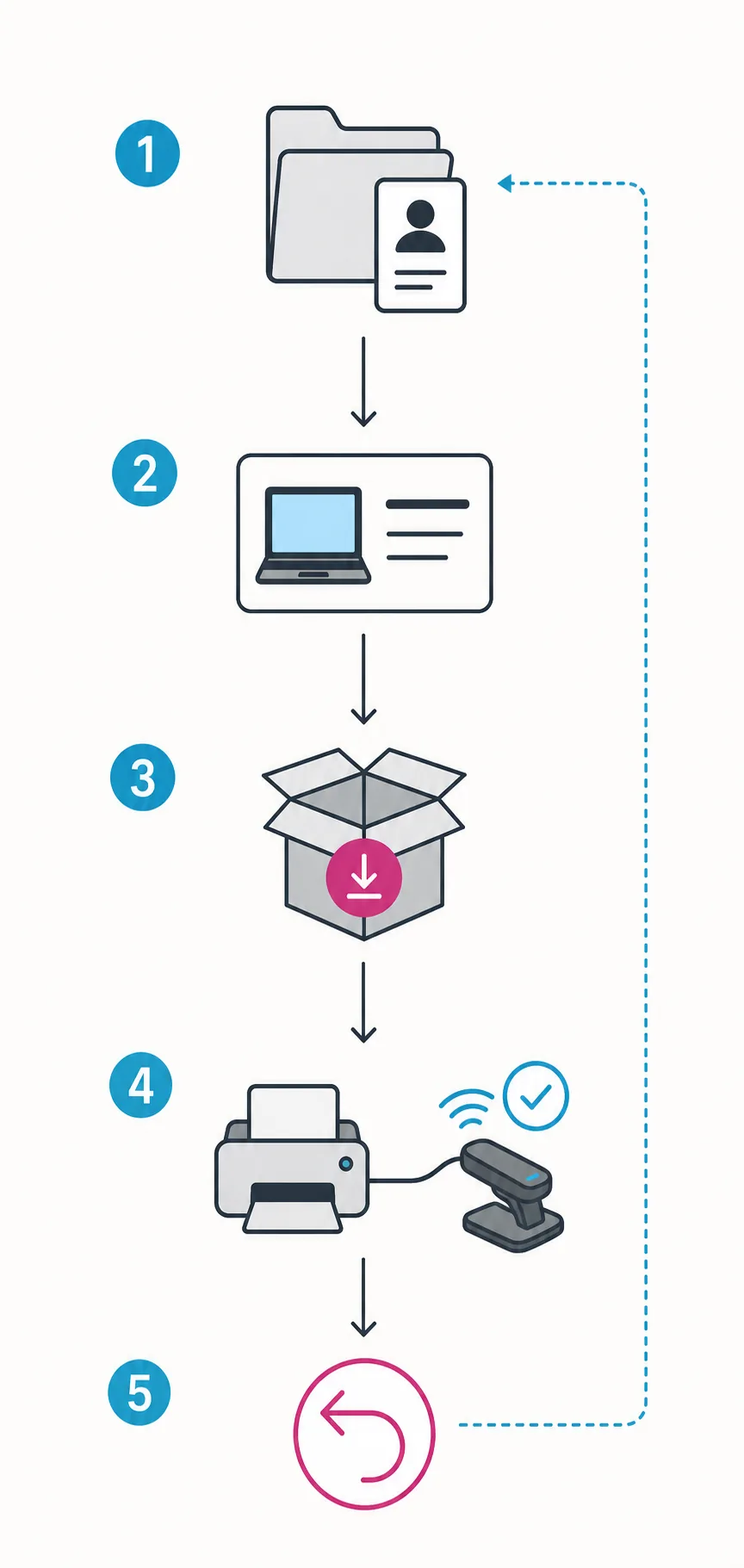
- 1
Export profiles
Save the profiles outside active iCUE folders and keep an untouched copy.
- 2
Record the device reason
Write the exact model, connection path, missing feature, and expected result.
- 3
Finish updates
Restart Windows so a pending reboot is not confused with a version problem.
- 4
Close competing utilities
Temporarily stop other RGB, monitoring, and peripheral-control tools.
- 5
Keep a return path
Save the current source note and decide how you will restore the current branch.
Install iCUE 3 and test one legacy device
Open Corsair's official iCUE page and confirm the historical label before starting. Keep the first test small: connect the device that created the compatibility question, disconnect nonessential hardware when practical, and avoid importing every profile immediately. A focused test makes it easier to tell whether the branch changed detection or whether another variable changed at the same time.
After installation, allow the application and its modules to finish loading before changing firmware or applying a complex profile. Check the device tile, the single control that was missing, and the connection path. If the device is still absent, stop repeating installers and inspect cable, receiver, USB controller, exact-model support, service state, and competing utilities.
- 1
Open the official entry
Confirm that Corsair currently labels the selected historical item as iCUE 3.38.88.
- 2
Test one device
Leave unrelated Corsair hardware out of the first test when possible.
- 3
Check the target control
Verify detection and the exact lighting, assignment, sensor, or plugin behavior.
- 4
Stop when evidence is clear
If the symptom is unchanged, do not cycle through random mirrors.
- 5
Record the result
Keep the branch, device model, date, missing features, and return plan together.
iCUE 3 vs iCUE 4 and iCUE 5
The current iCUE 5 branch is the normal starting point for supported hardware. iCUE 4 is a narrower legacy option, and iCUE 3 is an older historical branch with the strongest reason to verify the exact device before use. The labels are not interchangeable: firmware, modules, plugins, and profile behavior can differ across each boundary.
A profile that opens in more than one branch can still behave differently. Lighting layers may target another device, macros can depend on a different action map, and a sensor or cooling panel may expose fewer controls. Import one profile at a time after the branch is stable, inspect every target, and remove unfamiliar actions before enabling it.
| Decision point | Prefer iCUE 5 | Consider iCUE 3 |
|---|---|---|
| Hardware | Current supported product | Named historical model with evidence |
| Installer problem | Fix network, permissions, modules, or services first | Only after the issue is proven branch-specific |
| Profiles | Current device and workflow | A known legacy plugin or profile depends on the branch |
| Long-term use | Current fixes and broader support | Accept older limits and keep a return plan |
If iCUE 3 still fails, return safely
Separate download, installation, module retrieval, and device detection. If the official page does not open, check browser, DNS, filtering, proxy, and network access. If setup starts but stops later, check restarts, disk space, permissions, security policy, and module retrieval. If the app opens without the device, focus on connection, firmware, service, and exact-model support.
Do not run several installers at once or choose a random mirror because its filename looks short. Do not disable security software permanently, and do not delete Corsair services before preserving logs and the original symptom. Those actions remove evidence and can turn a compatibility test into an untracked cleanup problem.
- Keep the original profile export before changing branches again.
- Confirm current support and exact device identity before returning to iCUE 5.
- Test detection and basic control before importing profiles or changing firmware.
- Restore profiles one at a time and remove unsupported actions.
| What happened | Next check | Do not assume |
|---|---|---|
| Official page or file will not open | Browser, DNS, filtering, proxy, and network | An old mirror is safer |
| Setup stops after launch | Restart, permissions, disk, modules, and previous state | The browser file is corrupt |
| iCUE opens but device is absent | Model, USB or receiver path, firmware, service, and utilities | An older branch repairs hardware communication |
| Profile imports incorrectly | Branch, device layers, macros, paths, and actions | The installer failed |
iCUE 3 download FAQ
Where can I download iCUE 3?
Open Corsair's official iCUE page and select the historical iCUE 3 entry only when your exact device or workflow requires it. This site does not host or repackage the installer.
What iCUE 3 version did Corsair show?
The official iCUE page showed a historical iCUE 3.38.88 entry when this guide was checked on October 8, 2026. Check the page again before acting because historical release lists can change.
Is iCUE 3.38.88 the latest iCUE version?
No. It is a legacy branch. Current supported hardware should normally start with the current iCUE 5 route, while iCUE 3 is reserved for a documented historical compatibility reason.
Should I download iCUE 3 because I use Windows 10?
Not by itself. Windows 10 users should begin with the current supported route unless the exact Corsair model, plugin, or saved workflow has a documented iCUE 3 requirement.
Can iCUE 3 profiles be used in iCUE 5?
Some profiles may open, but device layers, macros, application paths, effects, and cooling controls can differ. Export a backup and test one profile at a time instead of assuming that every setting migrates.
Why does this page link to Corsair instead of a direct old installer?
Historical files can move or return unclear headers. Linking to Corsair's current page avoids guessing a CDN path or presenting an unverified mirror as a safe download.