
Decide whether you need repair, uninstall, or a reinstall
Uninstalling iCUE is not the first answer to every problem. If iCUE opens and the problem is limited to a missing setting, a profile that will not activate, or a device tile that disappeared after a restart, first record the symptom and try the least disruptive fix. A repair or service restart may be enough. If the application will not open, the installer repeatedly stops, or a previous branch is blocking a clean setup, a controlled uninstall followed by a restart is more appropriate.
Use the uninstall route when you want to remove the current installation, change from one iCUE branch to another for a documented compatibility reason, or prepare a clean reinstall after repeated installation errors. Do not run several installers at once. Parallel cleanup processes make it harder to tell whether the problem is the Windows app registration, the web installer, the background service, a USB device, or a profile file.
The safest boundary is simple: back up what you need, use Windows to remove the application, restart, and verify the result before touching any remaining folder. Manual deletion and registry cleaners can remove evidence or break service registration without proving that the original problem is fixed.
| Situation | First choice | Why |
|---|---|---|
| iCUE opens but one setting or profile is wrong | Profile or service check | Avoid removing a working installation before isolating the issue |
| The app will not start or a branch change is required | Back up, uninstall, restart | A fresh app registration can remove an installation-state conflict |
| The uninstaller is stuck or missing | Windows restart and official support path | Do not delete service files or registry entries blindly |
| A device remains missing after reinstall | Connection, compatibility, and service diagnosis | A reinstall cannot repair a cable, USB controller, or unsupported model |

Back up profiles before you uninstall iCUE
Before you remove iCUE, export important software profiles and save them in a separate folder that is not inside an active iCUE directory. Give each backup a useful name, such as the device, purpose, and date. If the profile came from another source, keep a copy of the original file and note the iCUE branch, devices, macros, DPI settings, cooling behavior, and lighting effects it expects.
A saved hardware effect is different from a software profile. Some keyboards, mice, memory modules, and controllers can keep a limited lighting or assignment state in onboard memory, but that does not mean every software effect, application rule, macro, or sensor setting will survive an uninstall. Test the hardware mode before cleanup if keeping a basic fallback matters.
Also record the current Windows version, iCUE version, connected devices, and the exact error message. This short inventory prevents a reinstall from becoming a memory exercise. It also gives you something concrete to compare when a device is still missing after the new installation.
- Export profiles and store the copy outside the active iCUE folders.
- Write down the device model, connection mode, and current iCUE branch.
- Separate software profiles from settings saved in device memory.
- Capture error text and progress percentages before starting cleanup.
- Do not use a registry cleaner as a substitute for a documented backup.
How to uninstall iCUE on Windows 10 or 11
The normal uninstall path is Windows Settings, not a guessed executable inside the installation folder. The wording varies slightly between Windows 10 and Windows 11, but both routes use the installed-app registration so Windows can remove the application in a controlled way.
Close iCUE first and save any work in other programs that use device macros or profiles. Exit competing RGB, motherboard, monitoring, and peripheral utilities when possible. Do not stop or delete the Corsair Device Control Service executable by hand; the service may be needed by other installed Corsair devices and its files are not a safe substitute for the app uninstaller.
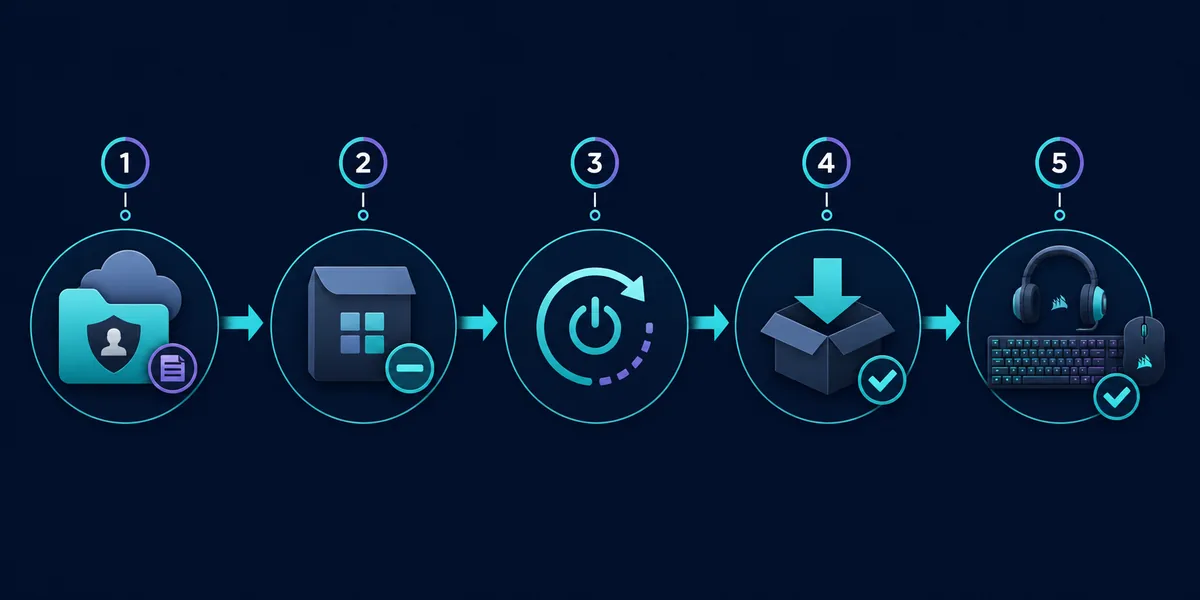
- 1
Close iCUE and save your backup
Exit iCUE, close other hardware-control tools, export the profiles you need, and keep the backup outside the active program folders.
- 2
Open Windows installed apps
In Windows 11, open Settings, Apps, and Installed apps. In Windows 10, open Settings, Apps, and Apps & features. Search for Corsair iCUE.
- 3
Choose Uninstall
Open the iCUE entry, select Uninstall, and follow the Windows or Corsair removal prompts. Do not launch a second installer while this process is running.
- 4
Restart Windows
Restart before testing a reinstall. A restart clears pending file handles and makes it easier to distinguish an app-registration problem from a service or device problem.
- 5
Check the result without deleting folders blindly
Confirm that iCUE is no longer listed as an installed app. Leave remaining folders alone until you know whether the next step is a normal reinstall or an official support-led cleanup.
How to reinstall iCUE after uninstalling
If the uninstall was intended to repair the app, reinstall from the verified Corsair-controlled source rather than a third-party mirror or a guessed versioned filename. As of August 10, 2026, this site records the Windows x64 web installer as iCUE 5.49.34. A web installer is a small starting file that may retrieve additional modules during setup, so a successful browser download does not guarantee that every later installation stage will succeed.
Before opening the installer, confirm that Windows has restarted, pending Windows updates are not waiting for another reboot, and security or network policies are not blocking the installer from retrieving modules. Connect only the device needed for the first test when practical. After iCUE opens, wait for the application to finish its first load, then check the device tile, profile list, and any firmware prompt before reconnecting more hardware.
Restore one backed-up profile at a time. Start with a separate test profile, review assignments and macros, and confirm that lighting or cooling behavior is expected before making it active. If the device is still absent, stop repeating the installer and move to compatibility, USB, service, or firmware diagnosis.
- Use the verified Corsair-controlled installer, not a repackaged mirror.
- Let the web installer complete its module retrieval before testing several devices.
- Confirm the exact model and Windows architecture before restoring a profile.
- Import a backup into a separate test profile before activating it globally.
- Use the existing download-failed guide when the browser or module download itself fails.
What to do when iCUE will not uninstall
A failed uninstall does not mean that you should delete every Corsair folder. First restart Windows, close any process that is visibly using iCUE, and retry the Windows Installed apps entry once. If the entry is greyed out, the uninstaller is missing, or the process stops with an error, record the exact message and whether Windows still lists iCUE as installed.
If the problem began after a device, service, or security change, simplify the system before trying another cleanup: disconnect unnecessary USB devices, close competing RGB utilities, and check whether Corsair Device Control Service is running normally. Do not remove the service executable or use a registry cleaner. Those actions can make a later repair harder and can remove information needed by official support.
When a normal uninstall cannot complete, use the current Corsair Help Center instructions or support path for the exact iCUE branch and Windows build. A third-party uninstaller may appear in search results, but it is not an official Corsair recovery method and should not be presented as the default. The page's goal is a traceable, reversible cleanup, not the largest possible deletion.
- 1
Restart and retry once
A pending restart or locked file can block the first attempt. Restart Windows, close iCUE-related utilities, and retry the installed-app entry.
- 2
Capture the failure state
Record the exact error, whether iCUE still appears in Installed apps, and whether the problem occurs before or after the removal prompt.
- 3
Separate app cleanup from device diagnosis
If the issue is a missing device or service conflict, use the Device Control Service and compatibility guides instead of repeating uninstall commands.
- 4
Escalate with evidence
Use Corsair Help Center guidance for the matching iCUE branch and Windows version when the registered uninstaller cannot complete.
Do not delete the service executable, rename iCUE folders, or run a registry cleaner just because the normal uninstall failed. Those actions can leave a less diagnosable installation state.
Repair vs uninstall vs clean reinstall
These terms are often mixed together in forum answers, but they describe different levels of change. Repair keeps more of the existing installation and is useful when the application starts but one component is inconsistent. An ordinary uninstall removes the registered app through Windows and is the normal preparation for a fresh install. A clean reinstall goes further only when a documented installation-state problem remains; it should still be based on a backup and an official support path rather than an indiscriminate folder purge.
The right outcome is not the smallest file count. It is a known state that you can explain and reproduce. If the same device fails after a verified reinstall, the cause may be a USB connection, unsupported model, firmware interruption, competing software, or a service problem. Use the symptom and evidence to choose the next guide instead of resetting the system repeatedly.
| Path | Use it when | Do not assume |
|---|---|---|
| Repair or service check | iCUE opens and the problem is limited to one component | Repair fixes a damaged cable or unsupported device |
| Normal uninstall | You want to remove the registered app or prepare a fresh install | Every profile and hardware-memory setting will be erased |
| Clean reinstall | A repeatable installation-state problem remains after backup and restart | Deleting more files automatically makes the result safer |
| Compatibility or service diagnosis | The app reinstalls but a device is still missing | Reinstalling again will repair hardware communication |
Version freshness and official-source checks
This site checked its current download record on August 10, 2026 before adding this guide. The verified record is iCUE 5.49.34 for Windows x64, using the stable Corsair-controlled web-installer URL. A range request to the installer returned HTTP 206 with an application/octet-stream MIME type and a total response size of 3,392,176 bytes; the CDN reported a last-modified time of August 5, 2026. The page does not host or repackage that file.
The application version and device firmware version are separate. Uninstalling iCUE does not automatically make a keyboard, cooler, memory module, or hub compatible with every branch. If the reinstall completes but a device is missing, check the exact model, connection path, firmware state, Windows build, and competing control utilities. The download-failed, compatibility, and Device Control Service guides are better next steps than another blind uninstall.
The official Downloads page and Corsair Help Center remain the authoritative places to check when the release or product instructions change. This independent guide records the source and date it verified, but it is not a Corsair support page.
Uninstall iCUE FAQ
How do I uninstall iCUE?
Close iCUE, export the profiles you need, open Windows Settings, go to Apps and Installed apps on Windows 11 or Apps and Apps & features on Windows 10, find Corsair iCUE, choose Uninstall, and restart Windows before testing a reinstall.
How do I uninstall iCUE and reinstall it?
Back up profiles, uninstall iCUE through Windows, restart, then use the verified Corsair-controlled installer. Let the web installer finish retrieving its modules before reconnecting or configuring several devices.
Will uninstalling iCUE delete my saved RGB settings?
Do not assume that every setting will survive. Some hardware can keep a limited onboard effect, while software profiles, application rules, macros, and sensor settings may depend on the installation. Export profiles before uninstalling and test hardware mode separately.
What should I do if iCUE will not uninstall?
Restart Windows, close iCUE and competing device utilities, retry the Installed apps entry once, and record the exact error. Do not delete the service executable or use a registry cleaner. Use Corsair Help Center guidance for the matching branch and Windows build when the registered uninstaller cannot complete.
Should I uninstall iCUE 4 before installing iCUE 5?
Follow the documented compatibility path for the exact device rather than uninstalling only because an old forum post says to do so. Export profiles, confirm the required branch, and use the normal Windows uninstall route if a branch change is needed.
Why is iCUE still not detecting my device after reinstalling?
A reinstall cannot fix every hardware-communication problem. Check a direct USB path, the exact model, Windows Device Manager, firmware state, Corsair Device Control Service, and competing RGB utilities before repeating cleanup.