
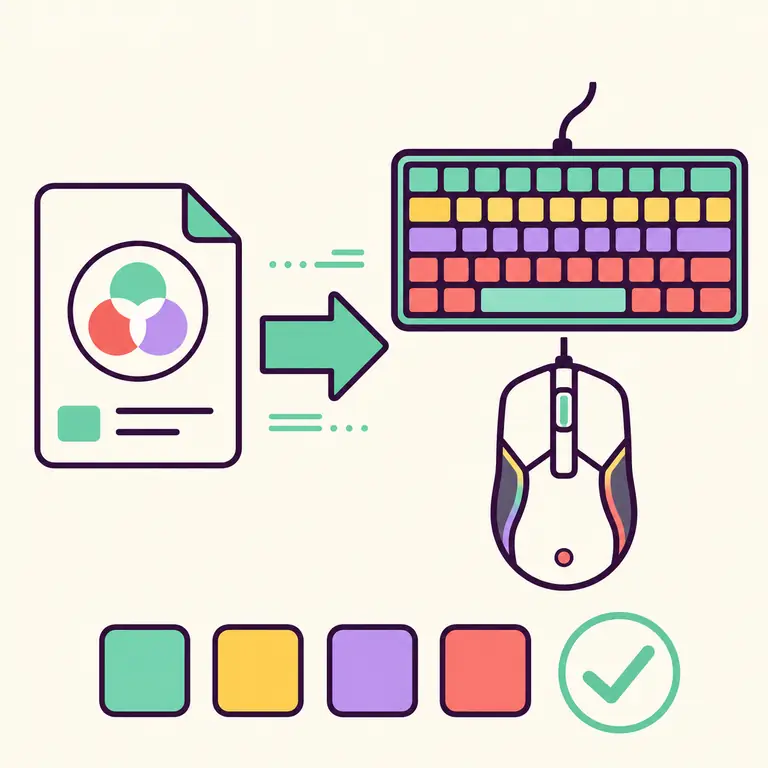
Where to find an iCUE profiles download
Start with Corsair's profile collection and established community authors who show previews, identify the profile version, and explain which devices were used. A trustworthy profile page should make it possible to understand what you are importing before you download. A random archive with no author, preview, date, or compatibility note is difficult to evaluate.
Profiles are often shared for a visual theme, game, movie, color palette, or specific keyboard layout. The visible preview can still differ on your system because device zones, LED counts, keyboard layouts, and iCUE branches vary. Treat the download as a starting configuration rather than a guaranteed identical result. Prefer a source page that remains available after the download so you can return for revised files, device notes, or creator support instead of passing an orphaned archive between users.
A useful iCUE profiles download page should explain what the file changes, which devices it expects, and how the author maintains it. A preview image is helpful but is not proof of compatibility or safety; prefer a normal profile export with a clear source instead of an executable wrapper or an orphaned archive.
Check a profile before importing it
A profile download should answer four questions: which iCUE branch created it, which devices it includes, what settings it changes, and who maintains it. These checks prevent most cases where a profile imports successfully but appears empty or changes an unexpected assignment.
| Check | Good evidence | Warning sign |
|---|---|---|
| Version | iCUE 5, 4, or 3 is stated | No branch or creation date |
| Devices | Keyboard, mouse, headset, and layout are listed | Only a generic RGB screenshot |
| Contents | Lighting and assignments are described | Unknown macros or actions |
| Author | Named creator and source page | Reuploaded archive with no origin |
Safe iCUE profile download workflow
Keep the original profile page open while you import so you can compare the expected look and compatibility notes. Save the file outside the browser's temporary download folder and avoid running executable files: a normal profile resource should be imported through iCUE, not installed as an unrelated EXE.
- 1
Export your current profiles
Back up working configurations before adding files from another author.
- 2
Verify the source page
Confirm the author, compatible iCUE branch, devices, preview, and update date.
- 3
Download the profile file
Save the resource as a data file; do not run unrelated executable wrappers.
- 4
Import into a new slot
Keep the new profile separate until lighting and actions have been reviewed.
- 5
Inspect every device
Check key assignments, macros, DPI, cooling, and lighting before activation.
Why an iCUE profile looks incomplete
A profile can import without errors and still show only part of its design. The creator may have used a different keyboard layout, an older device with different lighting zones, or a set of devices you do not own. Some effects depend on iCUE running, while hardware profiles use a smaller effect set stored on the device. Application-linked profiles can also appear inactive until the matching game or program starts, so inspect profile triggers before deciding that the import failed.
Check that the profile is selected, the intended lighting layer is enabled, and the relevant device is included. If only one device is missing, recreate or copy the effect for that device instead of repeatedly importing the same file. When every profile behaves incorrectly, repair the iCUE installation or confirm the software branch. If the profile changes key or mouse assignments, remove unknown actions before testing it in a game or work application.
Choose an iCUE profiles download for your setup
Start with the devices you actually own, not only the preview image. Record the keyboard model and layout, mouse, headset, memory, cooling controller, lighting hubs, and current iCUE branch. A profile designed around a full desktop can still be useful on a smaller setup, but only matching devices receive their intended layers. Profiles built for a different keyboard layout can place reactive zones or key groups in unexpected positions.
Read the profile description for required device families, plugins, fonts, games, or application paths. Prefer a source that names the author, iCUE version, supported devices, update date, and normal exported profile file. A screenshot proves only how the creator's system looked. It does not prove the download contains the same effects, supports your hardware, or is free of unrelated executable content.
Use a preview-first workflow. Import the iCUE profiles download as a new profile, keep automatic application switching disabled, and inspect every action before activation. Review keyboard and mouse assignments for text entry, launch commands, repeated inputs, DPI changes, and macros. Review cooling assignments separately; a decorative lighting profile should not silently replace a tested fan or pump configuration.
Expect to adapt the result. Copy useful lighting layers to a clean profile, adjust device groups, correct application triggers, and rebuild missing effects for hardware the author did not own. Save the customized copy under a new name so the original remains available for comparison. This approach is faster than repeatedly downloading near-identical profiles and gives you a stable configuration tailored to the real device set.
Keep a small profile library with descriptive filenames, source notes, branch information, and the date each profile last worked. Remove duplicates and exports that no longer match your hardware. A curated iCUE profiles download library makes recovery after a reinstall much easier and prevents an outdated profile from being imported simply because its filename looked familiar or its preview looked attractive. Retest each saved profile after a major branch change. Archive the clean original and your edited copy separately, then note which devices were present during the successful test. When a profile depends on a game, record the executable path and confirm that automatic switching returns to the default profile after the game closes. Delete test macros that are no longer needed, and export the final reviewed profile before changing another device.
| Profile detail | Good evidence | Warning sign |
|---|---|---|
| Compatibility | Exact devices, layout, and iCUE branch | Only a generic RGB preview |
| File | Normal exported profile with clear filename | EXE, script, or password-protected bundle |
| Actions | Documented macros and application triggers | Unknown launch or repeated-input actions |
| Maintenance | Author and update information | No source, date, or version context |
iCUE profiles download FAQ
Are iCUE profile downloads free?
Many official and community profiles are free, but always check the source terms and author information.
Can an iCUE profile contain macros?
A profile can include assignments and macros as well as lighting. Review every device and action before activation.
Why does a downloaded profile not light every device?
The creator may not have owned your device, or the lighting zones and iCUE branch may differ.
Can iCUE 4 profiles work in iCUE 5?
Some imports work, but layers and assignments can change. Keep a backup and test the profile in a separate slot.
Should an iCUE profile be an EXE file?
A normal profile resource should be imported as data through iCUE. Avoid executable wrappers that do not have a clear trusted reason.
Where can I download iCUE profiles?
Use Corsair's official profile collection or a community source that identifies the author, iCUE branch, supported devices, file type, and update context. Review the profile in a separate slot before activating it and avoid executable wrappers with no clear reason.