
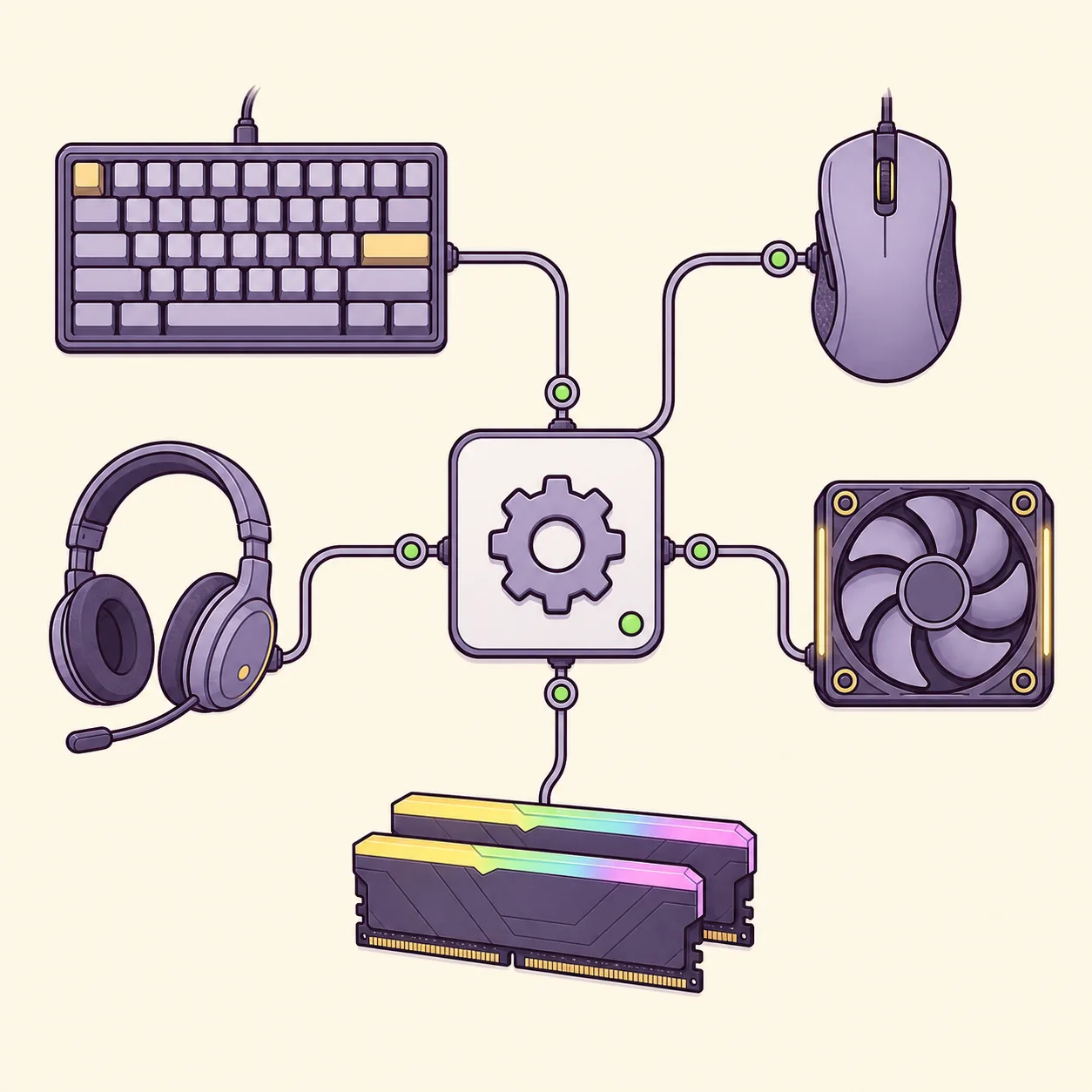
What is Corsair Device Control Service and what does it do?
Corsair describes the service as part of a newer architecture that separates device-control components from the main application. Compatible products can be managed by iCUE or by Corsair Web Hub, but not by both at the same time. The service provides the background connection that lets the selected control surface communicate with supported hardware.
The service name alone does not mean the computer is infected. Confirm the executable location and digital publisher before acting, but do not remove a Corsair-installed component only because it appears in Services or Task Manager. A missing or damaged service can leave devices undetected even when the main iCUE window still launches.
The service is the background part of the Corsair Device Control Service bundle. It does not replace iCUE's visible interface; it helps the selected control surface reach supported devices. If both iCUE and Web Hub try to own the same hardware, close one path before testing the service again.
| Symptom | Likely cause | Best first action |
|---|---|---|
| Device missing after startup | Service or USB wake state | Restart iCUE and reconnect |
| Web Hub says device is busy | iCUE still owns the device | Close iCUE completely |
| Service will not stay running | Damaged component or conflict | Repair current iCUE |
| High CPU or memory | Looping detection or conflict | Restart, update, isolate devices |
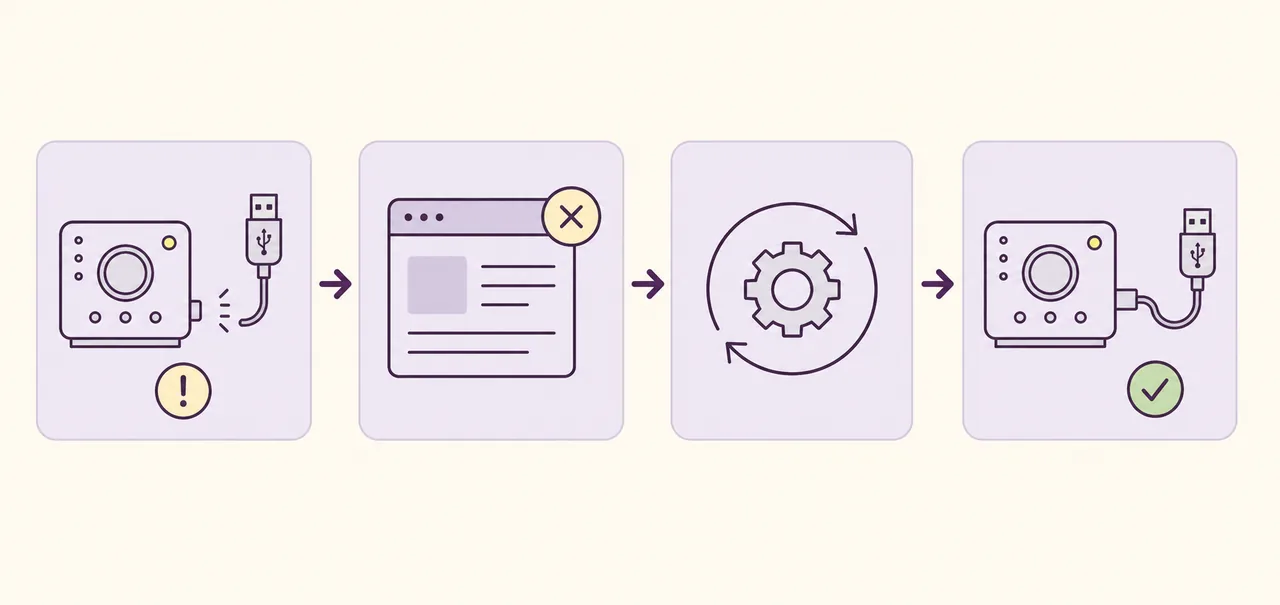
Seven fixes when the service is not running or devices disappear
Test after every step. A single controlled change preserves evidence and avoids turning a service problem into a profile, firmware, or driver problem.
- 1
Close iCUE and Web Hub
Exit iCUE from the notification area and close every Web Hub tab so only one control path can claim the device.
- 2
Restart Windows once
A full restart clears a stuck service, pending update, and USB wake state.
- 3
Restart the Corsair service
Open Services as an administrator, find Corsair Device Control Service, and use Restart. If it immediately stops again, continue to repair.
- 4
Reconnect the affected hardware
Use a direct motherboard USB port when possible and check power and data cables separately.
- 5
Update the current iCUE branch
Install the current verified release before downgrading. Service components and product modules update with iCUE.
- 6
Repair iCUE
Use Windows installed-app options or rerun the official installer to restore missing service files.
- 7
Perform a clean reinstall only last
Export profiles, uninstall through Windows, restart, and reinstall from Corsair's official source.
Fix high CPU, memory, or repeated service activity
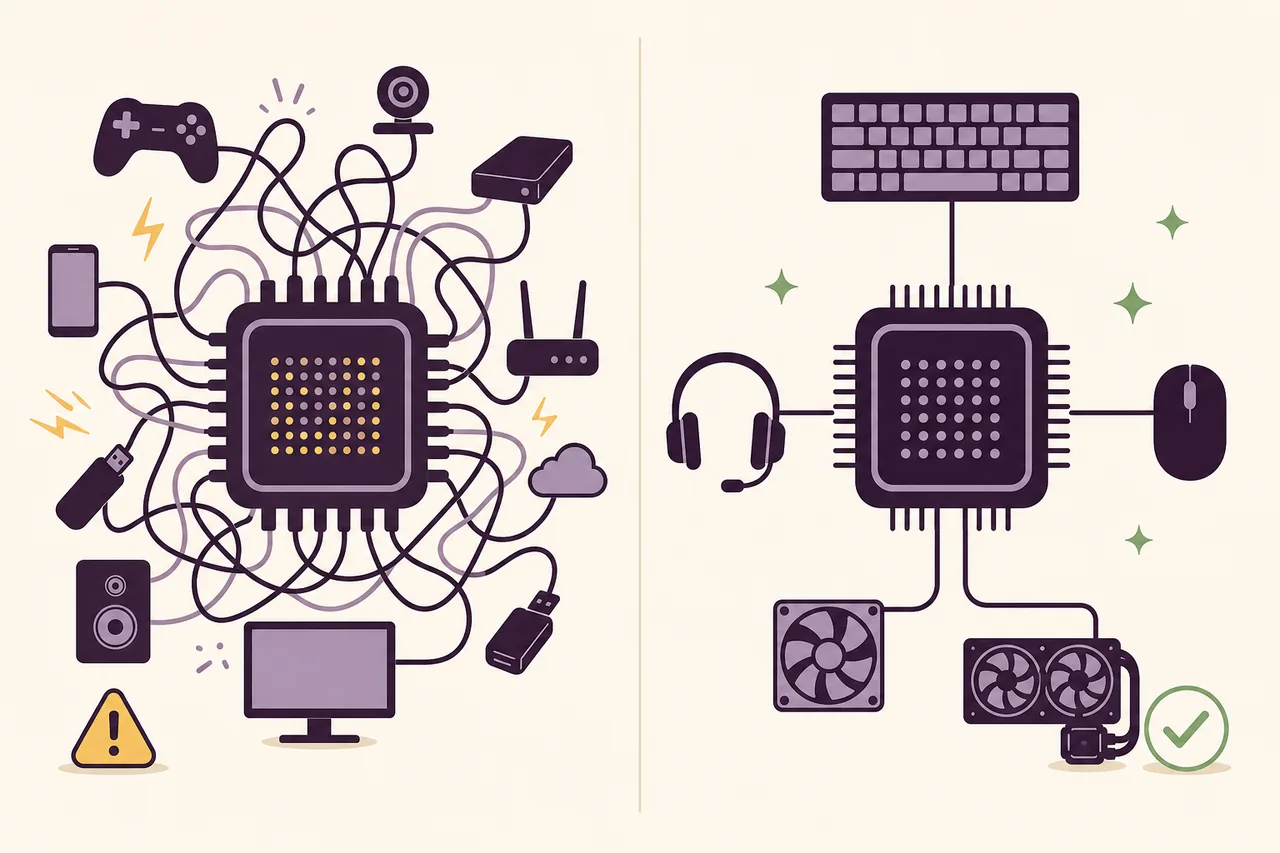
A short spike during device discovery, firmware checks, or an iCUE update is different from sustained usage. Observe the process for several minutes after startup. If usage remains high, close Web Hub, restart iCUE, and disconnect nonessential Corsair devices one at a time to identify a looping controller, receiver, or USB path.
Update Windows USB and chipset drivers from the PC or motherboard vendor, then verify that only one RGB or hardware-control utility owns each device function. Multiple utilities can compete for lighting, sensors, fans, or USB access. Do not permanently disable the service as a performance shortcut.
- Record CPU and memory before and after a restart.
- Check whether the spike begins when one device reconnects.
- Temporarily close other RGB, motherboard, fan, or peripheral tools.
- Export profiles before repair or clean reinstall.
When not to disable or delete the service
Disabling the service can remove detection or control for compatible hardware and can prevent Web Hub or iCUE from completing the task you installed it for. If you only need an onboard hardware profile, configure and test that profile first; support varies by device and not every effect, macro, cooling action, or sensor rule can run without software.
Do not delete the service executable, rename its folder, or use registry cleaners to remove it. Those actions make repair harder and can leave broken service registrations. If you no longer use compatible Corsair control features, uninstall iCUE through Windows rather than removing one component by hand.
Cooling controllers, pumps, fans, and sensor-based rules deserve extra caution. Confirm safe hardware behavior before stopping background control software.
Collect useful evidence before contacting support
If repair and a clean restart do not solve the issue, record the iCUE version, Windows version, exact device models, connection path, service status, and the time the failure occurred. Note whether the device appears after reconnecting, after waking from sleep, or only after launching Web Hub.
Screenshots of Services and Task Manager can show status and resource use, but do not post serial numbers, account details, or unrelated process lists publicly. A concise reproduction sequence is more useful than a broad statement that iCUE is broken.
Corsair Device Control Service FAQ
What is Corsair Device Control Service?
It is a Windows background component in Corsair's newer device-control architecture. It helps iCUE or Corsair Web Hub communicate with compatible products.
Can I disable Corsair Device Control Service?
You can stop it for a controlled test, but leaving it disabled may remove detection or control for supported devices.
Is Corsair Device Control Service malware?
The legitimate Corsair-installed service is not malware. Verify the file location and digital publisher if the process is in an unexpected folder.
Why is the service using high CPU?
Sustained use can indicate repeated device detection, an update, a USB problem, or a conflict with another control utility.
Why does Web Hub say my device is already in use?
iCUE may still own the device. Close iCUE completely, including its notification-area process, then reload Web Hub.
What does Corsair Device Control Service do?
Corsair Device Control Service provides a Windows background connection for supported Corsair hardware. It helps iCUE or Corsair Web Hub communicate with devices, while the exact behavior depends on the product, firmware, and control surface in use.