

What does an iCUE 5 download include?
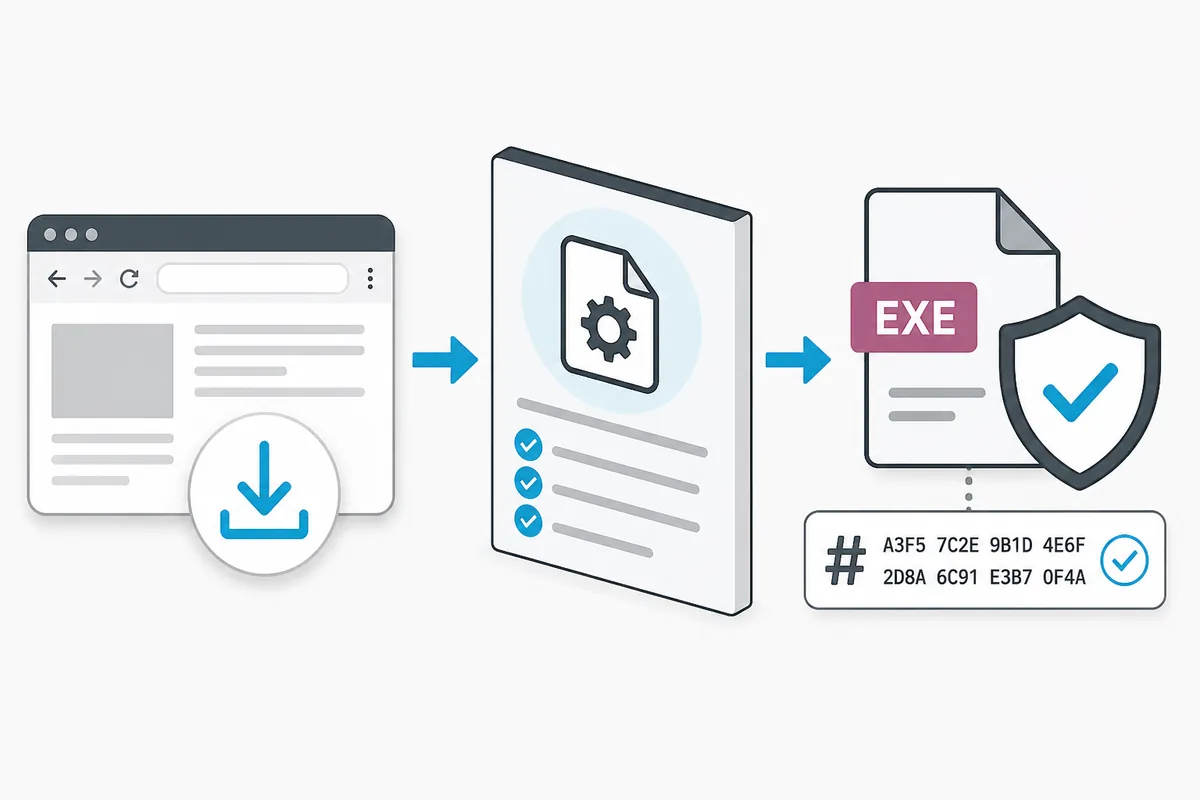
An iCUE 5 download normally refers to the Windows installer. The browser gets the setup file; the installer checks Windows and may retrieve modules afterward. A successful first download can therefore be followed by a module error.
Once installed, iCUE 5 may control lighting, device assignments, profiles, cooling, firmware tasks, and model-specific features. What appears depends on the device, connection, firmware, permissions, and branch. Confirm the exact device need before choosing a version.
| Stage | What it means | What to check |
|---|---|---|
| Browser download | The setup file reaches your computer | Source, browser, network, security policy |
| Installer start | The package opens and prepares setup | Permissions, disk space, restart, old remnants |
| Module retrieval | iCUE obtains install components | Filtering, proxy, firewall, installer logs |
| Device detection | The application discovers hardware | Model, connection, firmware, service |
Current iCUE 5 version and official source
Corsair's release-notes page listed iCUE v5.49.34 as the latest iCUE 5 update checked on September 16, 2026; the entry is dated August 5, 2026. Treat it as a dated reference and recheck Corsair's page before a later download.
This guide links to Corsair instead of mirroring an EXE or inventing a file-size claim. A filename or download counter does not prove authenticity. Confirm the release entry and read its patch notes.
Is iCUE 5 compatible with Windows 11 and Windows 10?
iCUE 5 is the normal branch to test on supported Windows 11 and Windows 10 systems, but OS support is only part of the decision. Match Corsair's current requirements to the exact Windows edition, architecture, and device. Windows 10 alone does not require iCUE 4.
For a new install, check disk space, administrator access, network access, and competing RGB or monitoring utilities. Remove unnecessary variables, then reconnect other hardware after the target device appears.
- Match current Corsair requirements to Windows 10 or Windows 11 before setup.
- Use the exact device model and connection path, not only K70 or H100i.
- Finish updates and restart before diagnosing a version-specific failure.
- Close competing RGB, motherboard, monitoring, and peripheral utilities for the first test.
How to download and install iCUE 5
Use an observable sequence so you can identify the stage that stops. If Corsair changes labels, follow its current wording while keeping the same checks.
After iCUE opens, let the first scan finish. Test one device and one basic control before importing profiles or changing firmware.
- 1
Open the official source
Open Corsair's iCUE page and confirm the intended release branch.
- 2
Prepare Windows
Save work, finish updates, keep administrator access, and close competing utilities.
- 3
Run the installer
Run setup, review choices, and allow required modules to download.
- 4
Restart when requested
Restart if requested; do not run several setup processes at once.
- 5
Test before importing
Confirm the target device and one basic control before restoring profiles or updating firmware.
When the installer opens but modules or devices are missing
A browser download can succeed while setup modules fail. If the installer stops, check network filtering, DNS, proxy or VPN behavior, endpoint security, pending restarts, and disk space. Use the failed-download and stuck-at-33 guides for staged recovery.
If iCUE installs but a device is missing, check the model, cable or receiver, internal USB, power, firmware, Device Manager, and Corsair service. A version change cannot fix a loose cable or unsupported product. Record the exact error and failed step before disabling security, deleting services, or trying an older installer.
| Observed result | Next check | Avoid assuming |
|---|---|---|
| The page or file will not open | Browser, DNS, proxy, filtering | The release is unavailable |
| Setup stops retrieving modules | Firewall, endpoint policy, restart, disk | The first file is corrupt |
| iCUE opens but a device is absent | Model, connection, power, firmware, service | An old branch fixes hardware |
| A profile behaves differently | Branch, device layer, macros, app paths | The installer failed |
iCUE 5 vs iCUE 4 or iCUE 3
Start with iCUE 5 for current supported hardware. Consider iCUE 4 or 3 only when an exact legacy device, plugin, or workflow has a documented requirement. Choose from model and feature evidence, not a vague preference for an older installer.
Profiles may behave differently across branches. Export them, import one at a time, and keep this page focused on the current iCUE 5 decision.
| Decision point | Prefer iCUE 5 | Consider iCUE 4 or 3 |
|---|---|---|
| Hardware | Current supported product | Legacy model with documented requirement |
| Download issue | Repair network, permissions, modules, remnants | Only if branch-specific |
| Profiles | Current device and workflow | Plugin or profile needs an older branch |
| Long-term use | Current fixes and support | Accept older support limits |
Prepare profiles and update safely
Before changing an installation, export important profiles and keep an untouched copy outside active Corsair folders. Record the model, branch, key assignments, macros, lighting layers, cooling curves, and hardware-memory settings.
After iCUE 5 is stable, restore one profile at a time and inspect targets, actions, application rules, and cooling. Remove unfamiliar actions from unknown profiles. For firmware or reinstall work, wait for device discovery and keep power stable.
- Export profiles before uninstalling, changing branches, or clean testing.
- Store the backup outside active iCUE folders.
- Restore one profile at a time; inspect targets, macros, and cooling.
- Test detection before firmware changes and keep connections stable.
When should you use an older iCUE version instead?
Use an older branch only for a named reason: documented legacy-device support, a required plugin or workflow, or a controlled troubleshooting test. A short filename on an old mirror is not evidence. Keep the source page, model, branch, date, and rollback plan together.
If it does not change the symptom, stop cycling installers and return to the connection path, service, firmware, competing utilities, or failed stage.
iCUE 5 download FAQ
Where can I download iCUE 5?
Use Corsair's official iCUE page linked at the top of this guide. This site does not host or repackage the installer, and the official page is the source to use when release labels or files change.
What is the latest iCUE 5 version?
The official Corsair release page showed iCUE v5.49.34 as the latest update when this guide was checked on September 16, 2026, with the entry dated August 5, 2026. Check the official page again before a later download because version numbers can change.
Does iCUE 5 work on Windows 11 and Windows 10?
iCUE 5 is the normal branch to evaluate on supported Windows 11 and Windows 10 systems. Confirm the current Corsair requirements, exact device model, architecture, permissions, and connection path before installing.
Why does the iCUE installer download but fail later?
The first setup file may download successfully while module retrieval is blocked by network filtering, proxy settings, endpoint security, pending restarts, permissions, or disk space. Diagnose the stage that failed instead of assuming the original file is corrupt.
Can I import an old iCUE profile into iCUE 5?
Some profiles can be imported, but device layers, macros, application paths, and cooling settings may differ. Keep a backup, import one profile at a time, inspect every target, and remove unfamiliar actions before activating it.