
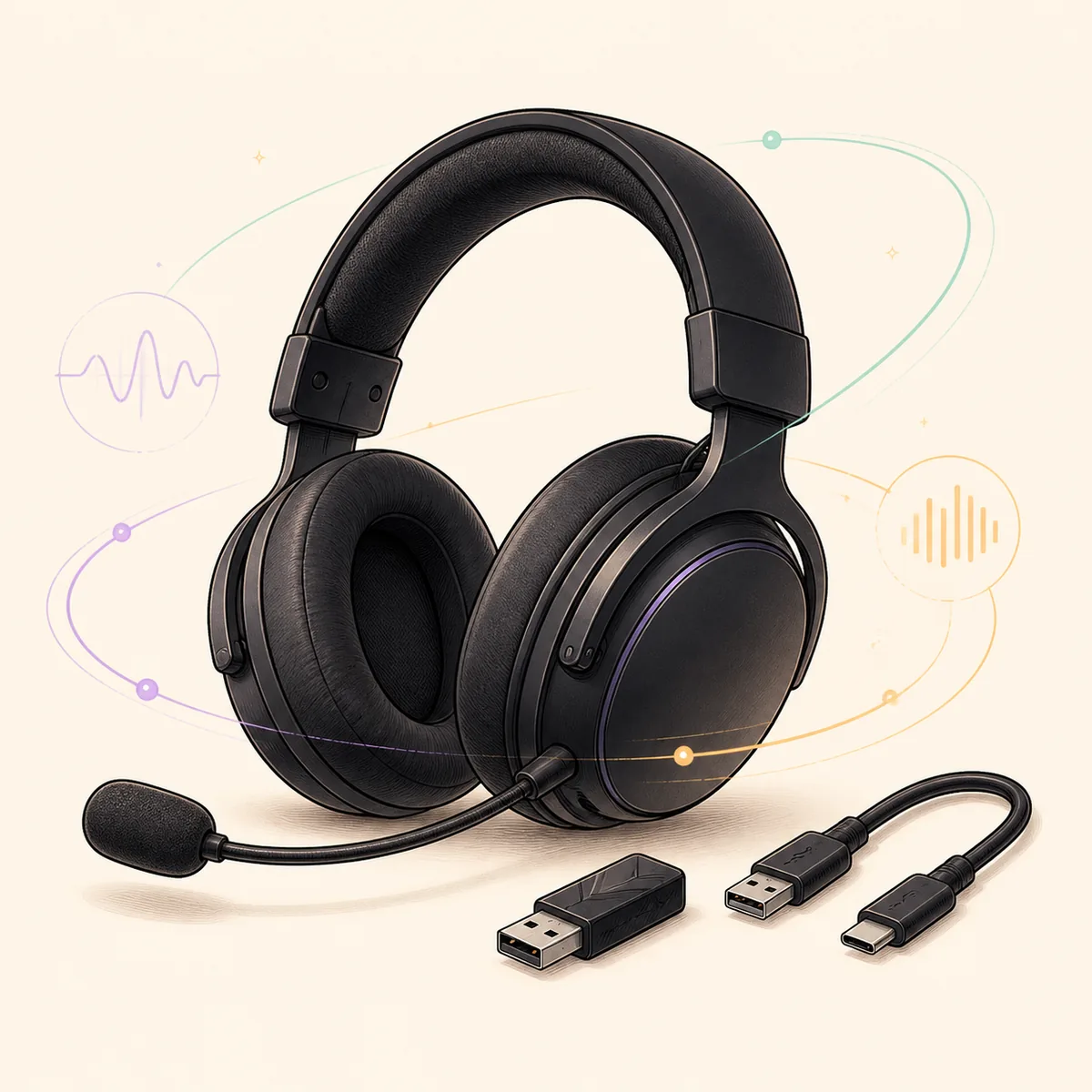
What software do Corsair headsets use?
For supported Corsair headsets, the main desktop application is Corsair iCUE. It can provide device-specific controls such as equalizer presets, microphone level, sidetone, lighting, battery status, firmware prompts, and profile switching. The exact menu is not universal: a wired analog headset may expose only Windows audio controls, while a USB or supported wireless connection can expose a richer device panel.
This distinction matters when someone searches for Corsair headset software after connecting an HS55, HS80 Max, Virtuoso, Void, or another model. iCUE is the first application to try, but the headset must be supported and connected through a path that carries the required control data. Windows can play sound through a headset without proving that iCUE has detected the device.
Use the model and connection as the boundary for every diagnosis. If the headset only needs playback and microphone input, Windows may be enough. If you need EQ, sidetone, lighting, wireless battery information, device firmware, or a saved software profile, install current iCUE and test the supported USB or wireless path first.
| Goal | Start with | What to expect |
|---|---|---|
| Basic playback | Windows sound settings | May work without iCUE |
| EQ or microphone controls | iCUE with a supported USB path | Menus depend on the model |
| Wireless battery or receiver settings | The original receiver and current iCUE | Bluetooth may expose fewer controls |
| Firmware or profile changes | iCUE after stable detection | Back up important settings first |
Download and install iCUE for a Corsair headset
The verified Windows package is iCUE 5.49.34, checked on August 16, 2026. It is a web installer, so the small EXE starts setup and retrieves the modules required by the system. The official file probe returned 200 for the normal request and 206 for a one-byte Range request, with a total response size of 3,392,176 bytes. Keep the network available until setup and module installation finish.
Download from the Corsair-controlled link above or use Corsair's Downloads page when you want to confirm the current release listing. This guide does not provide a headset-specific repackaged installer and does not treat a random mirror as an equivalent source. Close other RGB, audio-enhancement, motherboard, or peripheral utilities before the first detection test so two background services do not compete for the same device.
If you already have iCUE installed, open it and check the application version before changing firmware or profiles. A repair or reinstall can be useful when the installer is damaged, but it should not be the first response to a headset that is simply connected through an unsupported mode.
- 1
Back up useful settings
Export important iCUE profiles and note your headset model, receiver, cable, and current symptom before changing the installation.
- 2
Download the official installer
Use the verified Corsair CDN file or Corsair Downloads page. Confirm the filename is Install iCUE.exe before opening it.
- 3
Approve the Windows prompt
The machine-wide installer normally needs administrator approval. Read the publisher and file source instead of bypassing the warning blindly.
- 4
Connect one headset path
Use the original wireless receiver or a direct USB cable first. Avoid testing through an unpowered hub while diagnosing detection.
- 5
Test detection before tuning
Let iCUE finish module setup, then confirm the device appears before importing profiles or changing firmware.
- Finish pending Windows updates and planned restarts first.
- Close competing audio, RGB, and hardware-control utilities.
- Keep the receiver, headset, and USB path stable during setup.
- Use the exact model compatibility information before assuming a control is missing.
Choose the connection that exposes the right controls
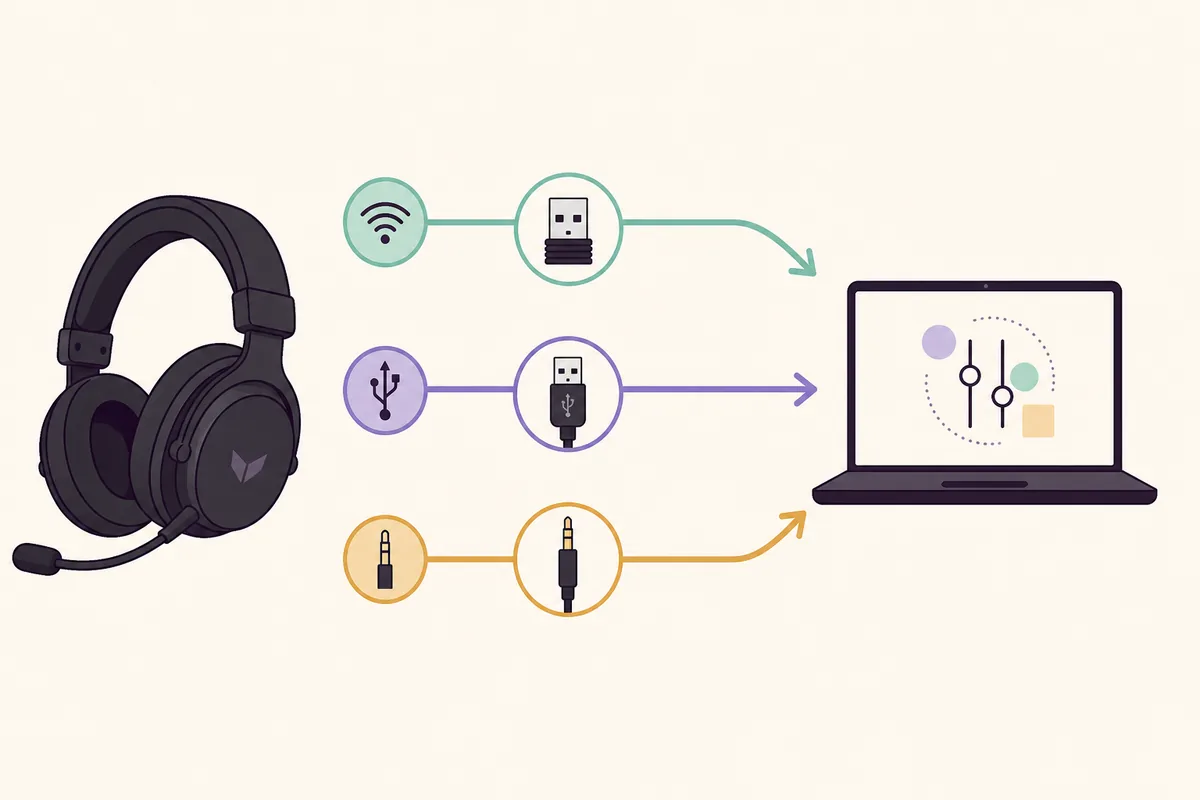
The connection path is one of the most common reasons a Corsair headset plays sound but does not show the expected iCUE controls. A USB receiver or direct USB cable can carry device data that an analog 3.5 mm connection cannot. Bluetooth may be convenient for audio, but it can expose a different feature set from the original receiver. Test the path recommended for the exact product instead of treating every wireless mode as interchangeable.
If the headset appears in Windows but not in iCUE, first close the app, reconnect the receiver or cable directly, and reopen iCUE. Check that Windows is using the intended playback and recording devices. Do not change several drivers, services, firmware packages, and audio utilities at once; one controlled connection test produces better evidence.
The diagram below is an editorial explanation of the decision. It is not a screenshot of iCUE and does not claim that every headset supports all three paths. The product manual and Corsair compatibility information remain the authority for the model-specific connection.
| Connection | Good first use | Important limit |
|---|---|---|
| Original wireless receiver | Wireless controls, battery, and device detection | Receiver pairing and model support still matter |
| Direct USB cable | First detection, firmware, and software controls | A charge-only cable may not carry data |
| 3.5 mm analog | Simple audio through the sound device | Often cannot expose iCUE device controls |
| Bluetooth | Convenient audio on supported hardware | May expose fewer controls than the receiver |
A headset that plays audio is not automatically a headset that iCUE has detected. Verify the connection mode separately from Windows playback.
Set up EQ, microphone, sidetone, lighting, and battery controls
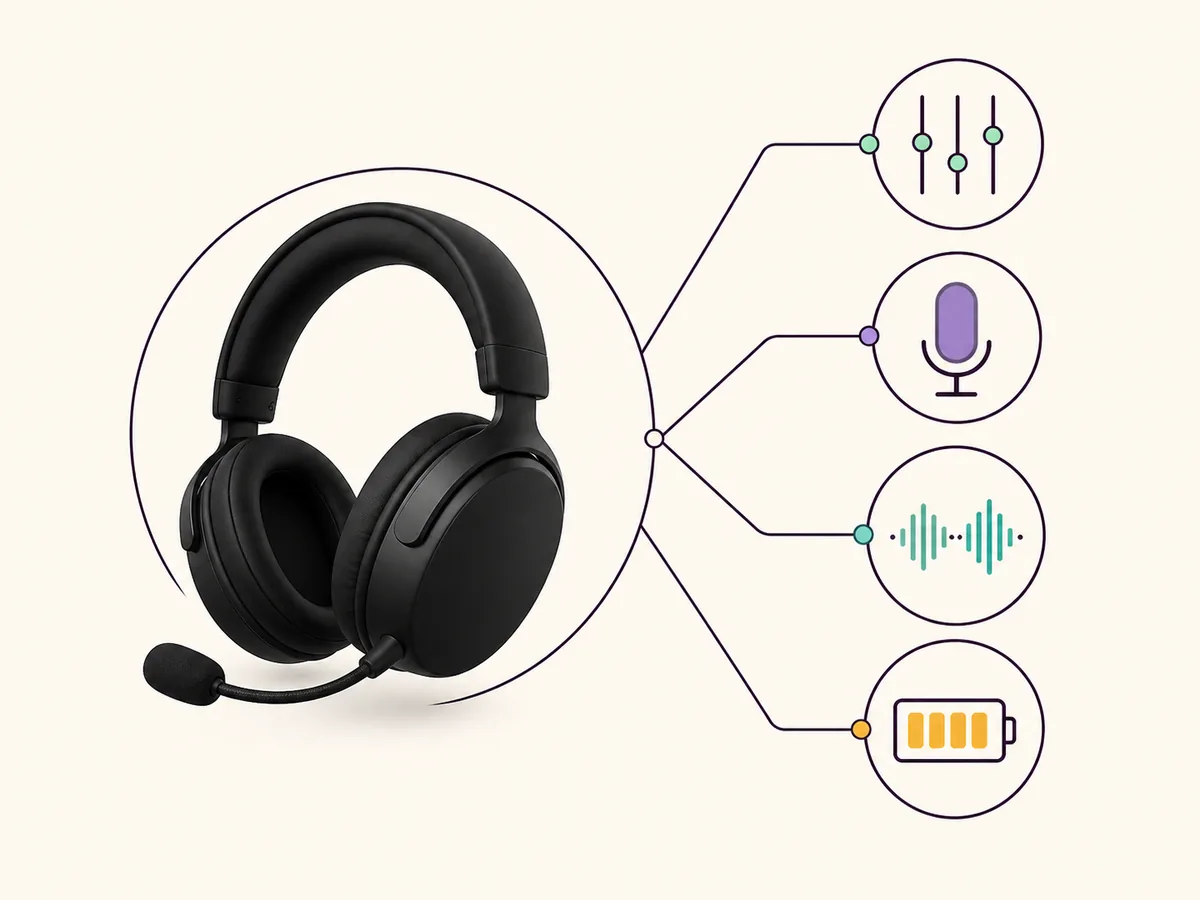
Once the headset appears in iCUE, make one small change at a time. Start with a conservative equalizer preset or a small manual adjustment, then test a familiar game, music track, or voice call. If the sound becomes harsh, quiet, or distorted, return to a neutral profile before changing Windows enhancements or third-party audio software.
Microphone level, noise behavior, sidetone, and mute controls can be split between the headset, Windows, the voice application, and iCUE. Check the input device selected by Windows and the chat application before assuming that a missing microphone menu is an iCUE failure. For wireless models, battery and receiver status may appear only when the supported receiver is connected.
Lighting, battery, EQ, microphone, and firmware controls are device features rather than promises made by the application alone. A profile can store settings for one model and fail to reproduce them on another. Keep a known-good baseline and export it before a major iCUE or firmware change.
- Test playback and microphone separately before tuning both.
- Save a neutral baseline before creating a custom EQ profile.
- Check the selected Windows input and output device after reconnecting.
- Do not flash firmware while USB power or the receiver connection is unstable.
- Inspect imported actions and profile triggers before enabling them.
HS55, HS80, Virtuoso, Void, and other model boundaries
Model names are useful search clues, but they are not interchangeable software guarantees. A wired HS55, a wireless HS55 variant, an HS80 Max, a Virtuoso model, and a Void headset can use different connection hardware and expose different iCUE panels. Start with the exact product name, revision, receiver, and operating system before copying settings from another guide.
For the question ‘what software do I download for my HS55 Corsair headset?’, the practical answer is current iCUE when the exact HS55 model and connection are supported. If it is an analog-only path, Windows may handle the basic audio while iCUE cannot expose the same device controls. For wireless products, use the original receiver or the connection method named by Corsair, then confirm detection before tuning.
Do not create a separate page for every headset model unless the model has a truly distinct download, compatibility table, setup process, and FAQ. This guide keeps the shared software decision together and points model-specific questions back to the exact Corsair documentation.
| Model family example | First check | Do not assume |
|---|---|---|
| HS55 | Wired or wireless variant and connection type | The same controls across every HS55 package |
| HS80 / HS80 Max | Original receiver, USB path, and iCUE detection | Bluetooth has the full receiver feature set |
| Virtuoso | Receiver pairing and current firmware | A profile from another Virtuoso revision is identical |
| Void and other supported headsets | Exact model page and supported OS | A generic ‘Corsair headset software’ result proves compatibility |
Fix a Corsair headset that does not appear in iCUE
Start with the least destructive checks: close iCUE, reconnect one supported USB or receiver path, restart Windows if a restart is pending, and open iCUE again. Confirm that the headset appears as the intended Windows playback and recording device. If another utility owns the headset, RGB, virtual audio, or receiver service, close it during the comparison.
If the device still does not appear, compare one direct USB port with the original receiver or cable, check the exact model in Corsair's compatibility information, and inspect the Corsair Device Control Service. A failed installer, a damaged module, or a stale installation can need repair, but firmware should not be the first guess when the connection path is unknown.
Keep the evidence from one chronological attempt: model and revision, connection type, Windows version, iCUE version, exact message, whether Windows sees playback and microphone, and what changed after each test. If the issue started after an update, use Corsair's support guidance and the existing firmware or download troubleshooting pages rather than downloading a random older installer.
- 1
Reconnect the supported path
Use the original receiver or a direct data-capable USB cable and remove duplicate receivers while testing.
- 2
Check Windows audio devices
Confirm playback and recording selections, mute state, and the application-specific output device.
- 3
Close competing utilities
Temporarily exit other RGB, virtual-audio, motherboard, and peripheral-control tools.
- 4
Check service and compatibility
Review the exact model, platform, firmware, and Corsair Device Control Service before attempting a reinstall.
- 5
Repair only with evidence
Use the download-failure or uninstall guide when the installer or existing iCUE state is the proven cause.
Corsair headset software FAQ
What software do Corsair headsets use?
Supported Corsair headsets use Corsair iCUE for device controls. The exact EQ, microphone, sidetone, battery, lighting, and firmware menus depend on the model and connection.
What software do I download for an HS55 Corsair headset?
Start with the current Corsair iCUE installer when your exact HS55 model and connection are supported. A wired or analog path may still provide basic Windows audio without exposing the same iCUE controls.
Can I use a Corsair headset without iCUE?
Often yes for basic playback and microphone use, but software-only EQ, sidetone, lighting, battery, profiles, or firmware features may require iCUE and a supported connection.
Why does my Corsair headset work in Windows but not appear in iCUE?
Windows playback can work through a path that does not expose iCUE device data. Test the original receiver or a direct data-capable USB cable, close competing utilities, check compatibility, and then review the Corsair service.
Does Bluetooth give a Corsair headset the same iCUE controls?
Not necessarily. Bluetooth, 3.5 mm, USB, and the original wireless receiver can expose different features. Follow the exact model's supported connection guidance.
Which iCUE version should I use for a Corsair headset?
Use the current supported iCUE 5 branch unless Corsair documents a model-specific legacy requirement. This page verified iCUE 5.49.34 and the official Windows installer on August 16, 2026.