iCUE lighting effects download: what can you get?
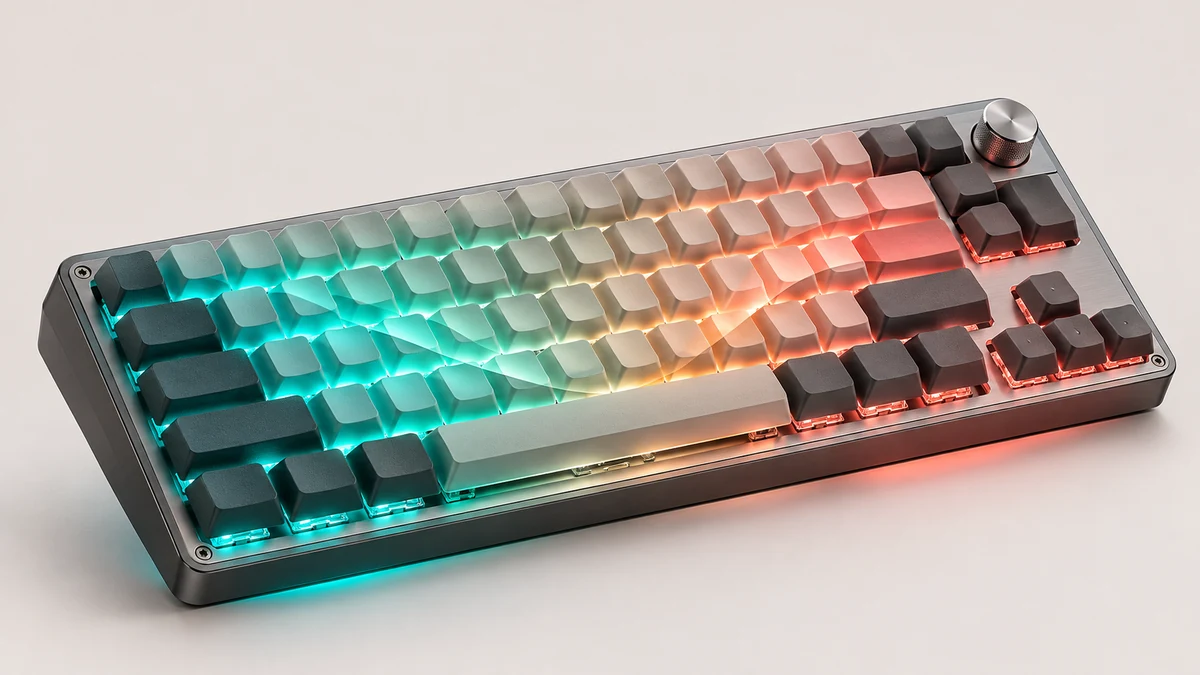
The phrase iCUE lighting effects download can mean finding a ready-made design or getting the iCUE application that controls it. Corsair's Drivers & Software page is the software route. Its lighting guide adds effects from within iCUE rather than through a universal effect installer.
For an importable design, look for an iCUE profile that includes lighting. A profile may also contain assignments or other device settings, so check its file type, author, supported products, and iCUE branch. Do not run an executable simply because a page calls it an effect download.
A built-in wave or static color may need no download: connect a supported product, open its Lighting Effects controls, and review the options for that device.
| What you want | Where to start | What to check |
|---|---|---|
| A built-in effect | Lighting Effects for the selected device | Device detection and available types |
| A custom look | Add a Lighting Layer in iCUE | Selected zones and effect settings |
| Someone else's design | A trusted iCUE profile source | File contents, author, devices, and branch |
Built-in effects, custom layers, and profile files are different
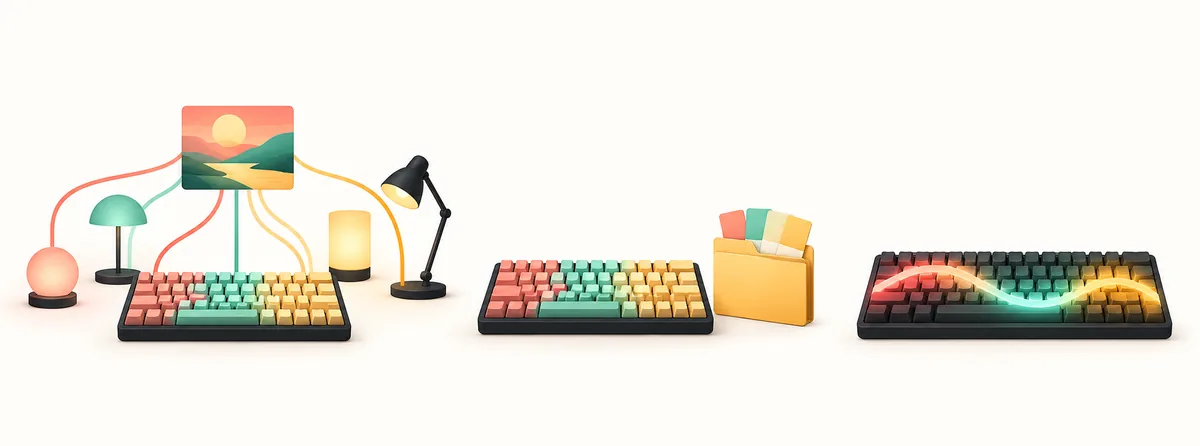
A built-in effect is a choice inside iCUE; a custom effect is made by selecting a lighting type, adjusting it, and assigning zones. Neither is a separate installer. A downloaded profile is a settings bundle that may include lighting, while Murals uses a visual source. The terms overlap in searches but describe different setup paths.
- Preset: choose an effect already offered for a detected device.
- Custom layer: add and tune an effect in the Lighting Layers area.
- Lighting Link: synchronize a supported effect across compatible connected devices.
- Profile: import a settings bundle that may include lighting and other controls.
How to add an effect in iCUE
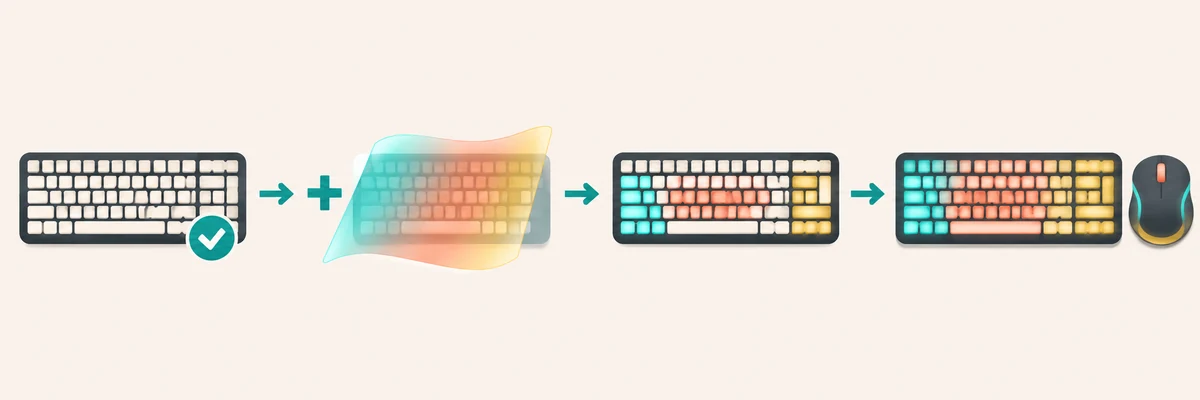
For iCUE 4 and newer, Corsair starts with a connected device. Complete Lighting Setup for an RGB controller, then edit one device and confirm the result before applying the idea elsewhere. Labels can vary by product; iCUE 3 and older have separate instructions.
- 1
Select the device
Choose the exact detected keyboard, mouse, cooler, memory kit, or lighting controller.
- 2
Check controller setup
Confirm channel type and connected product count when a controller is used.
- 3
Add a Lighting Layer
Open Lighting Effects, use the plus control, and choose an available Lighting Type.
- 4
Map and review zones
Apply the layer to intended zones and verify the real device before adding more changes.
Build a simple custom effect with zones
Begin with one layer and one goal, such as a static base, a slow wave, or a reaction on selected keys. Make sure the preview matches the physical device; correct controller setup before adding more layers if a zone stays dark.
Use zone selection to keep a readable key area while highlighting an edge or logo. A restrained palette is easier to maintain than overlapping effects. Lighting Link can apply a supported effect across compatible connected devices, so check its scope when only one product should change.
A lighting preview is only useful when the correct controller, product type, and zone layout have been configured.
When a downloadable iCUE profile is the better choice
Choose a profile when you want a creator's broader setup. Corsair's iCUE Library and community collections may offer packages containing lighting plus macros, assignments, fan behavior, or other settings. Review the contents before activation.
Export a backup, import into a separate profile slot, and inspect its devices and actions. A package for another keyboard, controller, memory kit, or iCUE branch may import while leaving zones empty or mapping effects differently. Avoid executable wrappers or files with no identifiable source; use a built-in effect when the package cannot be checked.
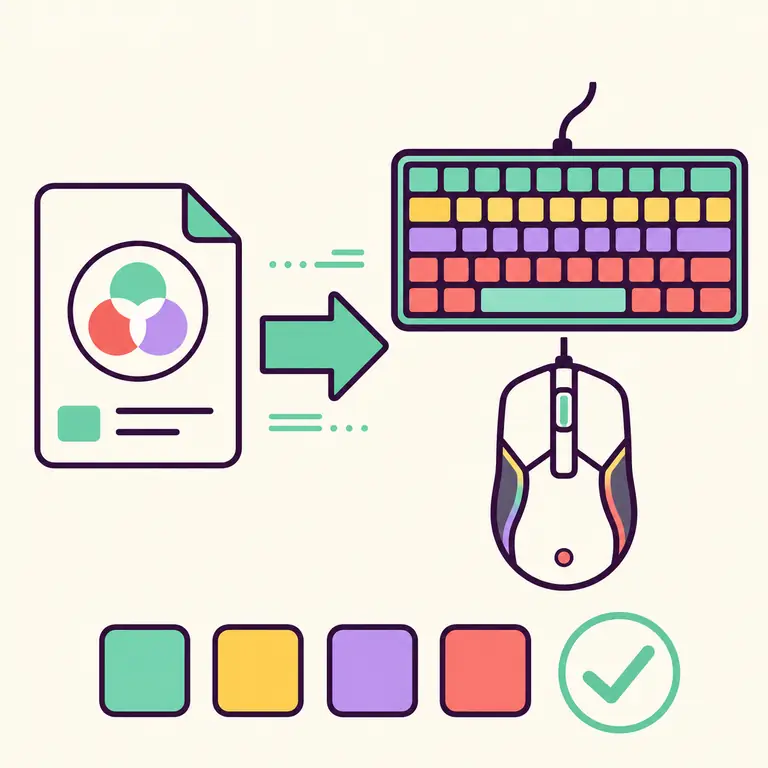
Check device zones and controller limits
Support depends on the exact product and connection, not only its family. Keyboards can differ in per-key control, memory may expose fewer zones than a preview, and fans depend on controller channel and physical order. Confirm the model in iCUE before choosing a profile or effect.
When lighting controls are missing, check device detection, controller configuration, and connection mode. Wireless, Bluetooth, receiver, USB, and onboard modes can expose different options; use Corsair's device guide if the labels differ.
| Symptom | Check first | Avoid assuming |
|---|---|---|
| Effect menu missing | Detection, software branch, and device support | Every Corsair device has identical controls |
| Fan colors are out of order | Controller type, fan model, and channel order | The animation itself is broken |
| Some keys do not change | Selected zones and profile device layout | The profile is compatible because it imported |
| Other devices also change | Whether Lighting Link is selected | The effect is limited to one product |
Do not install a legacy iCUE branch just to try one effect; check compatibility and keep a backup first.
Save changes and troubleshoot a lighting effect
Switch to a known effect and back to confirm the new setting persists. Some releases separate software lighting from hardware lighting stored on a device, so an effect used while iCUE is open may not control startup behavior.
If the result is wrong, isolate one cause at a time: device detection, controller setup, zones, competing layers, profile fit, or Lighting Link scope. Record the device model before reinstalling software or deleting profiles.
| Result | Likely next check |
|---|---|
| Preview changes but hardware does not | Device detection, firmware status, and connection mode |
| Only part of the device lights | Zone selection, controller layout, and profile support |
| Effect returns to an old look | Another active layer, profile, or Murals source |
| Several devices change together | Lighting Link scope and selected compatible devices |
Official sources and safe download checks
For iCUE, use Corsair's Drivers & Software page and confirm the publisher and package. We checked that route on November 5, 2026; the fetched content did not expose a version number, so this guide makes no current-build or file-size claim.
Corsair's lighting article documents layers and available effects, with instructions varying by device and software branch. For a downloaded profile, review its author and contents, import it into a separate slot, and keep a backup. A built-in option is simpler when you only need a color pattern.
iCUE lighting effects download FAQ
Can I download an iCUE lighting effect as a separate file?
Corsair's setup guide shows effects being selected or created inside iCUE. A downloadable design is often part of a profile, which can include other settings too.
Where should I download iCUE?
Start at Corsair's Drivers & Software page. This article does not mirror installers or claim a version number that was not visible in the checked source.
How do I add a custom lighting effect in iCUE?
Select a detected device, open Lighting Effects, add a Lighting Layer, choose an available Lighting Type, and apply it to the intended zones.
Will Lighting Link change every device?
Corsair says Lighting Link applies to connected compatible iCUE devices. Check its scope before selecting it if you only want one product to change.
Why is an effect missing or not working?
Check device detection, controller setup, software branch, selected zones, connection mode, active layers, and whether the chosen profile matches your hardware.
Is an iCUE profile the same as an effect installer?
No. A profile is a bundle of configuration data that may include lighting and other settings; review it and import it through iCUE instead of running an unknown executable.